%20--%3e%3cdefs%3e%3cstyle%3e%20.st0%20{%20fill:%20none;%20stroke:%20%230f172a;%20stroke-linecap:%20round;%20stroke-width:%205.5px;%20}%20.st1%20{%20fill:%20%2310b981;%20}%20%3c/style%3e%3c/defs%3e%3cpath%20class='st0'%20d='M2.75,42.01v-20.12C2.75,11.32,11.32,2.75,21.89,2.75s19.14,8.57,19.14,19.14v20.12'/%3e%3cpath%20class='st0'%20d='M14.12,42.01v-13.62c0-4.29,3.48-7.78,7.78-7.78s7.78,3.48,7.78,7.78v13.62'/%3e%3ccircle%20class='st1'%20cx='21.89'%20cy='11.74'%20r='4.98'/%3e%3c/svg%3e)
Stop Notification Storms: Email Notification Routing for Operations Teams

Email notification routing uses conditional rules to send each alert to the person or team best placed to act on it, rather than broadcasting every event to a shared inbox. A rule checks a field or piece of alert metadata against a condition, then sends the message to a specific address, group, or channel. Routing decides who receives an alert; a separate setting decides whether the alert fires at all.
TL;DR:
- Using a default route and verifying destination addresses prevents alerts from being lost due to unmatched values or typos.
- Arrange routing rules from most specific to broadest conditions to avoid overlapping matches that cause duplicate notifications.
- Implement rate limits, event grouping, or suppression windows to reduce alert storms caused by repeated or false-positive alerts.
- Match alert severity to channels appropriately, reserving email for informational events and using phone or SMS for critical incidents to prevent fatigue.
- Regularly review, test, and restrict access to routing rules, especially when organization or team structures change, to ensure sensitive alerts are correctly directed.
Table of Contents
- How to configure routing rules step by step
- Why rule order and operator choice decide who gets notified
- Stopping notification storms before they start
- Matching the channel to the severity of the alert
- Fixing the most common routing failures
- How EntryWatch applies routing to visitor and safety alerts
- Turning off batch notifications when you need real-time alerts
- Connecting email routing to PagerDuty, OpsGenie, and similar tools
- Routing by team, role, or other changing attributes
- Building a safety net with fallback recipients
- Keeping routing rules safe from unauthorized changes
- Practitioner note: route around ownership, not volume
- EntryWatch: a packaged option for visitor notification workflows
- Where to go for platform-specific detail
- Sources
- FAQ
How to configure routing rules step by step
Most platforms, whether a form builder, a monitoring tool, or an alerting service, group routing settings under a similar path: Notifications, then Send To, then Configure Routing. Once there, the setup follows the same logic everywhere.
- Pick the field or metadata to check, such as a form field, an alert’s severity tag, or a service name.
- Choose an operator, for example equals, contains, or is within a range.
- Set the value that triggers the rule, such as “region = West” or “severity = critical.”
- Choose the destination: a verified email address, a distribution list, or a webhook feeding another channel.
- Save the rule, then repeat for each condition you need to cover.
Routing configurations in tools like Gravity Forms pair a field, an operator, and a value with a destination address, and the documentation is explicit that every possible field value needs a matching rule. Skip that step and some submissions or alerts land nowhere.
Two habits prevent most early mistakes:
- Always build a default or catch-all route so unmatched values still reach someone.
- Verify every destination address before relying on it, since an unverified or mistyped address fails silently in many systems.
Before trusting a rule set in production, run it through a short test pass:
- Submit or trigger a few sample events that should match each rule.
- Test edge values, like an empty field, a boundary number, or an unusual character.
- Change a dropdown option or field value after saving rules, then confirm the routing still works as expected.
- Check delivery logs or use a test mode to confirm the message actually reached the destination, not just that the rule matched.
Why rule order and operator choice decide who gets notified
Most routing engines evaluate rules top to bottom and stop at the first match. Developer documentation on routing systems emphasizes this first-match, stop-on-match behavior specifically because it prevents the same event from triggering conflicting or duplicate notifications. A best-match approach, where the system scores every rule and picks the closest fit, exists in some platforms but is far less common and harder to predict.
Operator choice shapes precision as much as order does:
- Equals works for exact values like a status code or a fixed category.
- Contains catches partial matches, useful for free-text fields or subject lines.
- Regex handles pattern matching, such as extracting a ticket number or matching multiple related error codes at once.
- Is within suits numeric ranges, like a response time threshold.
- List membership checks whether a value belongs to a defined group, like a set of approved regions.
Structure rules with the most specific conditions first and the broad, general ones last, since a general rule placed too early will swallow traffic meant for a narrower one. Grouping rules into mutually exclusive sets, where only one condition in a group can ever be true for a given event, also removes a common source of double notifications.
Pro Tip: Keep a version history of your routing rules and re-test for overlapping matches every time you add a new one.
Stopping notification storms before they start
Repeated or duplicate alerts are usually a deduplication problem, not a volume problem. Sieve extensions built for email filtering demonstrate the underlying pattern: track a message identifier or a time window, and discard anything that repeats within it.
A few tactics cover most cases:
- Require a condition to persist, such as consecutive failures, rather than notifying on a single blip.
- Group similar alerts using an event ID, message ID, or subject-line pattern before deciding whether to send.
- Use built-in rate limits or daily caps for known noisy sources, and add explicit drop rules where a source is a known false-positive generator.
Longer suppression windows cut noise but also delay when someone finds out, so tune the window against how fast the underlying problem actually needs a response.
Matching the channel to the severity of the alert
Email is not the right channel for everything, and treating it as the default for every event is a common cause of alert fatigue. Incident management guidance on alert routing frames this directly: alert fatigue is usually a routing failure, not an alerting problem, and fixing it means aligning channel and severity with who actually has to respond.
A workable severity structure:
- Informational events go to email or a dashboard, no urgency attached.
- Warning events go to email plus a team channel like Slack.
- Critical events go to phone or SMS plus email, with an escalation policy if nobody acknowledges within a set window.
Escalation policies need an acknowledgment window and a defined next step, whether that is paging a backup responder or notifying a manager. Some responders need every channel firing at once; others only need one reliable channel plus a way to look up detail later. Routing metadata like service, environment, and owner is what lets the system pick correctly instead of guessing.
Fixing the most common routing failures
Most routing problems trace back to one of four issues.
- Check for a missing default route: any field value with no matching rule sends nothing, and nobody notices until it matters.
- Confirm destination addresses are verified and the rule itself is switched on. Many platforms let you build a correct rule and never activate it.
- Look for field or choice edits made after the rule was saved. A dropdown option renamed later often breaks the match silently.
- Watch for batch or consolidated notifications that run on their own schedule. These asynchronous jobs frequently ignore a toggle you flipped mid-run, so a change you made might not take effect until the next batch cycle.
Fixing these four in order clears the large majority of routing complaints before you need to touch anything more advanced.
How EntryWatch applies routing to visitor and safety alerts
Visitor management is a practical example of routing in action. EntryWatch’s host notification feature can target a message by site, by host, or by visitor type, so a delivery arriving at a warehouse dock does not page the same person as a client meeting in reception.
Emergency roll calls raise the stakes on both speed and accuracy. During an evacuation, EntryWatch needs a fast, auditable list of who is on site, which means deduplication and escalation matter as much as they do in any monitoring system: one confirmed alert per event, sent to the person who can act, with a clear record afterward.
The practical lesson carries over directly: use the metadata a system already provides, in this case site, host, and visitor type, to route accurately instead of adding filtering logic after the fact.

Turning off batch notifications when you need real-time alerts
Consolidated or digest-style notifications exist to reduce inbox noise, bundling several events into one periodic email instead of sending each one immediately. That is useful for low-priority updates, but it becomes a liability the moment a reader needs to know about something the instant it happens.
Most platforms that offer digests also offer a way to bypass them for specific rules or recipients. Look for a setting labeled something like “immediate delivery,” “bypass batching,” or “real-time notification” attached to the individual rule, not the global notification setting. This usually needs to be configured per rule, since turning off batching globally can flood a shared inbox with everything that was previously grouped.
Exchange Online’s alert policy configuration shows the pattern from the enterprise side. Alert policies let administrators set specific recipient lists and limits on daily notifications, and they can disable email notifications for a given policy entirely when a channel is not needed. That same logic applies to disabling a batch job: identify the policy or rule generating the digest, then either exclude it from the batch or redirect it to an immediate channel.
Before switching a rule out of batch mode, confirm what happens to events already queued for the next digest cycle. Some systems flush the queue immediately when you change the setting, others hold onto it until the next scheduled run, which can create a short gap where events are neither batched nor delivered right away.

Connecting email routing to PagerDuty, OpsGenie, and similar tools
Alerting and monitoring platforms typically treat email as one delivery channel among several, alongside SMS, phone calls, and chat integrations. The routing logic sits inside the platform itself: a monitoring tool detects an event, hands it to the alerting platform’s routing engine, and that engine decides which on-call schedule, escalation policy, and channel combination applies.
Integrating email into this setup usually means configuring the platform to accept inbound alerts by email, then mapping the sender address, subject pattern, or embedded tags to the same routing rules used for other alert sources. Most platforms support a generic email integration that parses the subject and body for a service name or severity tag, then routes the parsed alert through the same escalation policy as a native integration would.
The benefit of routing through a dedicated alerting platform rather than raw email is the escalation logic itself: acknowledgment tracking, automatic re-notification if nobody responds, and a unified log across every channel. Raw email lacks all three unless you build them separately. For teams already running one of these platforms, it usually makes more sense to route alerts into it and let its escalation engine handle delivery, rather than duplicating that logic inside the email system itself.
Routing by team, role, or other changing attributes
Static routing rules break down the moment an organization changes who is on a team, who owns a service, or who is on call this week. Dynamic routing solves this by pointing rules at a group or attribute rather than a fixed address, so the underlying membership can change without anyone touching the rule itself.
A few patterns work well:
- Route to a distribution list or group alias tied to a role, like “warehouse-supervisors,” instead of a named person.
- Pull the recipient from a directory attribute, such as a service owner field maintained in a separate system.
- Use a lookup step that resolves “current on-call” at the moment the alert fires, rather than a hardcoded name.
The trade-off is that dynamic routing depends entirely on the underlying group or directory staying accurate. A distribution list that nobody maintains becomes just as unreliable as a hardcoded address that nobody updates, so whichever attribute a rule depends on needs its own owner and its own review schedule.
Building a safety net with fallback recipients
Every routing rule set eventually hits an event that matches nothing: a new field value, a renamed category, or a condition nobody anticipated when the rules were written. Without a fallback, that alert simply disappears.
A fallback recipient, sometimes called a default or catch-all route, catches anything that fails every specific rule and sends it somewhere a person will actually see it. Form-based routing guidance describes this as one of the standard approaches to routing design: conditional logic for specific cases, paired with a default path for anything that falls outside them.
A few practices make fallback routes actually useful rather than just present:
- Send fallback alerts somewhere actively monitored, not an inbox nobody checks.
- Tag fallback deliveries distinctly in the subject line so the recipient knows it hit a fallback and can flag the missing rule.
- Review fallback traffic periodically. A steady stream of fallback alerts usually means a specific rule needs to be added, not that the fallback is doing its job.
Treat the fallback as a diagnostic signal as much as a safety net. If it stays empty, the rule set is solid; if it fills up, that is exactly where the next rule belongs.
Keeping routing rules safe from unauthorized changes
A routing rule controls where sensitive information goes, which makes it a target worth protecting, not just a configuration detail. Changing a single rule can redirect financial alerts, security notifications, or emergency escalations to the wrong person, intentionally or by mistake.
A few safeguards matter most:
- Restrict who can edit routing rules to a small, named group, separate from who can view alerts.
- Require verification before adding a new destination address, so an alert cannot be quietly redirected to an unverified inbox.
- Log every change to a routing rule, including who made it and when, so an unexpected redirect can be traced.
- Review destination lists periodically, since former employees or old contractors left on a distribution list are a common, avoidable leak.
RFC guidance on message disposition notifications makes a related point worth carrying into routing design generally: automatic notifications should be limited and, where the return path is ambiguous, should require confirmation rather than firing blindly. The same caution applies to routing changes. A rule that silently redirects sensitive alerts deserves the same scrutiny as an email address it does not fully trust. Basic account hygiene around the mailbox itself, covered in general guidance on business email security, closes the rest of the gap.
Practitioner note: route around ownership, not volume
Routing is a filtering and ownership problem before it is a technical one. The real question is not “how many alerts fire,” but “who is actually responsible for acting on this one.” Rules built around volume tend to just spread noise around; rules built around ownership tend to quiet down on their own.
Revisit routing whenever a team or product changes, and roll out edits in stages with a test mode and logs before pushing them live.
— Flipmind
EntryWatch: a packaged option for visitor notification workflows
Building routing logic into a general email or alerting system takes time most facilities and operations teams do not have to spare. EntryWatch’s visitor management platform comes with host notifications, kiosk sign-in, and emergency roll calls built in, so routing by site, host, or visitor type works out of the box instead of needing custom rule design.
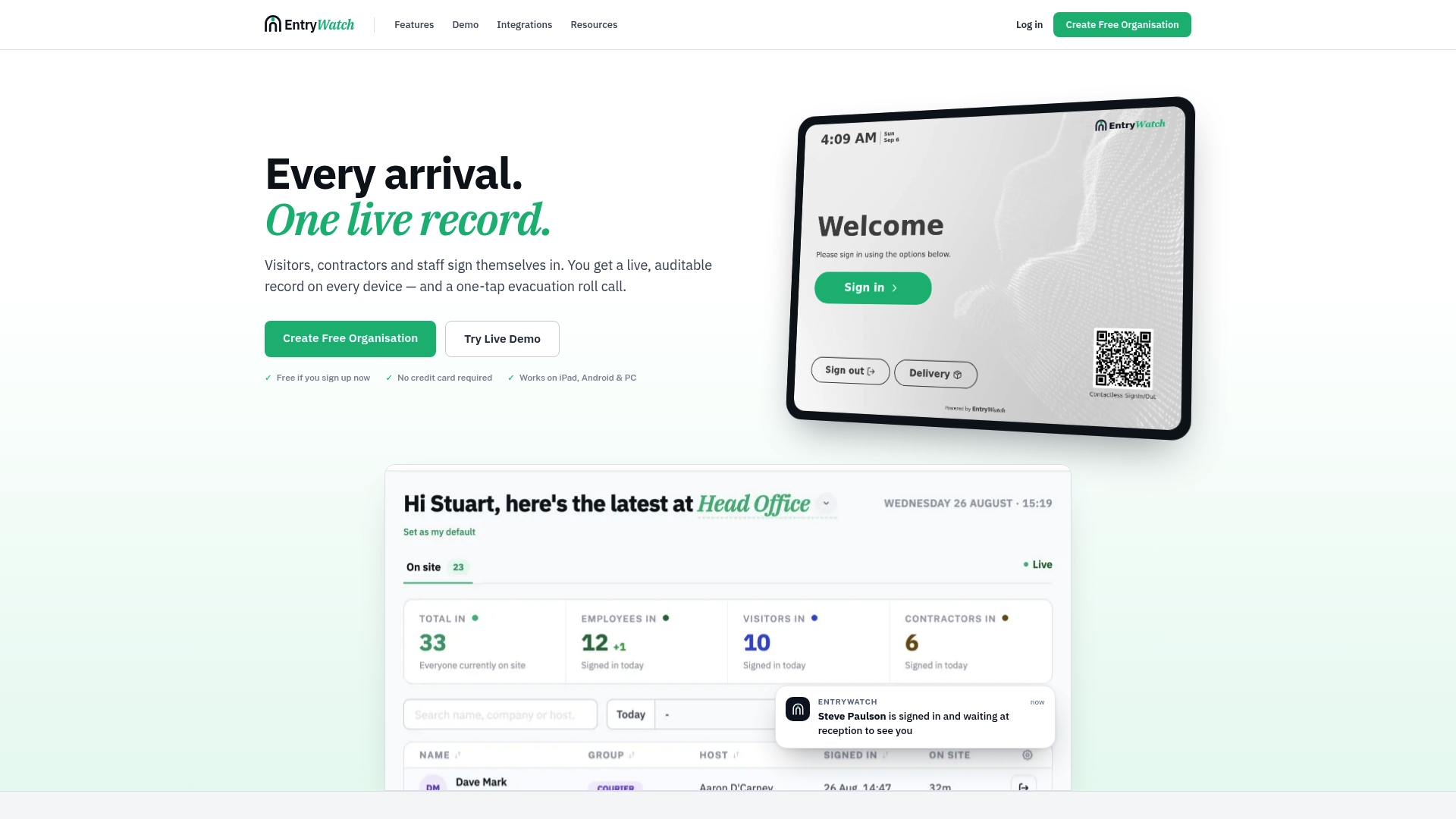
A specialist platform makes sense once notification needs are tied to physical sign-in events rather than software alerts, particularly in logistics, healthcare, or office environments juggling contractors, visitors, and staff at once. EntryWatch offers its full feature set free to early customers for a limited time. Check current plans and pricing to see if it fits your site.
Where to go for platform-specific detail
For exact configuration steps or protocol details, consult your platform’s own routing documentation, Exchange Online’s alert policy pages, or the relevant RFC for duplicate handling.
Sources
- Email Routing in Gravity Forms Notifications
- Alert policies in Exchange Online | Microsoft Learn
- Alert Routing: How to Send Alerts to the Right Responders | Rootly
FAQ
What is a routing email?
A routing email is a notification sent to a specific recipient based on a conditional rule, rather than to a single fixed address. The rule checks a field or piece of event data and directs the message to whichever person, group, or channel matches.
How do I get email notifications immediately?
Check whether the notification is set to batch or digest delivery, since consolidated notifications delay messages until a scheduled run. Switch the specific rule to immediate or real-time delivery rather than changing the global notification setting, which can flood other recipients.
Where do I find my email notifications?
Check your inbox’s primary folder first, then spam or junk, since automated notifications sometimes get filtered there. If a specific alert is missing entirely, the routing rule may lack a matching condition for that event, which a fallback or default route is meant to catch.
How do I get email alerts from a specific sender?
Set up a rule or filter keyed to that sender’s address using an “equals” or “contains” operator, then route matches to your inbox or a dedicated folder. In an alerting platform, the same result comes from mapping the sender or subject pattern to your recipient address in the routing configuration.