%20--%3e%3cdefs%3e%3cstyle%3e%20.st0%20{%20fill:%20none;%20stroke:%20%230f172a;%20stroke-linecap:%20round;%20stroke-width:%205.5px;%20}%20.st1%20{%20fill:%20%2310b981;%20}%20%3c/style%3e%3c/defs%3e%3cpath%20class='st0'%20d='M2.75,42.01v-20.12C2.75,11.32,11.32,2.75,21.89,2.75s19.14,8.57,19.14,19.14v20.12'/%3e%3cpath%20class='st0'%20d='M14.12,42.01v-13.62c0-4.29,3.48-7.78,7.78-7.78s7.78,3.48,7.78,7.78v13.62'/%3e%3ccircle%20class='st1'%20cx='21.89'%20cy='11.74'%20r='4.98'/%3e%3c/svg%3e)
IT Admins: Android Kiosk Mode Lock Task Recipes and Visitor Tradeoffs
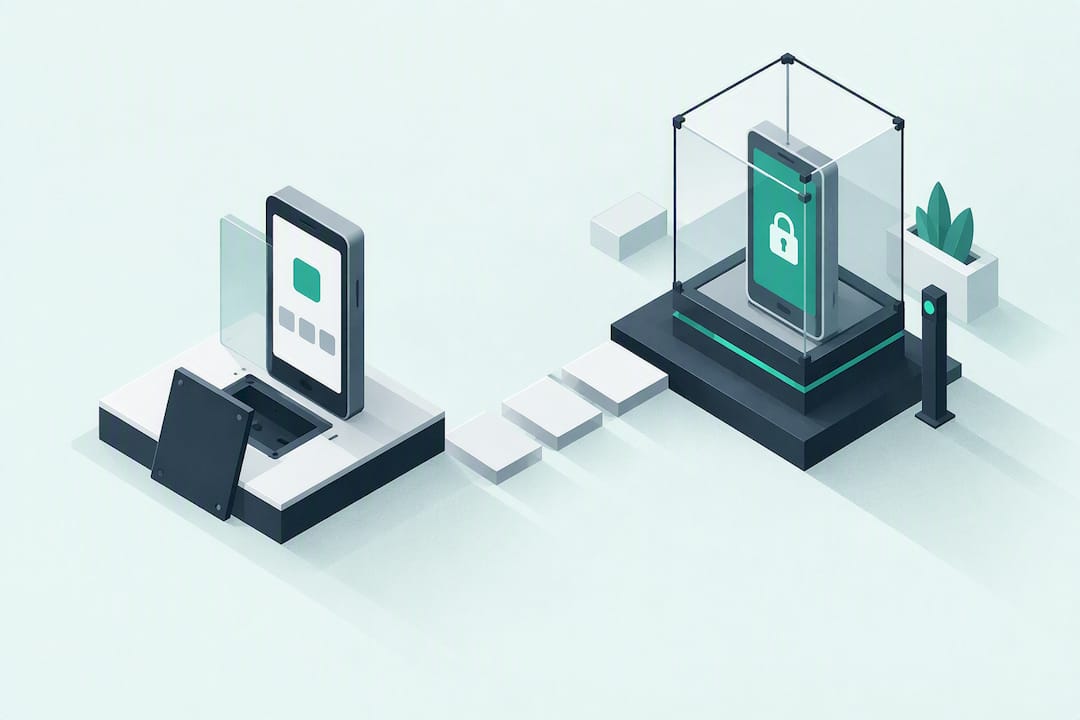
Android kiosk mode locks a device to one app or a curated set of apps using Lock Task Mode, and it’s the right approach for any unattended, public-facing, or single-purpose device. For production deployments, provision the device as a dedicated device through Android Enterprise and manage it with an EMM rather than relying on manual setup. Pick an enrollment method, test it on one device, then scale.
TL;DR:
- Lock Task Mode requires device owner setup during initial provisioning and cannot be retrofitted onto already-used devices without a factory reset.
- Zero Touch enrollment offers the best scalability for large fleets, with automated configuration on first power-on, unlike ADB which is suitable only for quick testing.
- For unattended or public kiosks, restrict hardware controls and physical access, including disabling factory reset, safe mode, volume adjustments, and USB access, to prevent tampering.
- Managing multiple kiosks effectively necessitates an enterprise mobility management platform to enable remote configuration, updates, troubleshooting, and policy enforcement.
- Using a managed kiosk solution like Entry simplifies deployment by providing out-of-the-box sign-in and forms without complex setup or custom development.
Table of Contents
- What Is Android Kiosk Mode and When Do You Need It?
- Screen Pinning vs. Lock Task Mode: Why Pinning Falls Short
- How Do You Enroll Devices for Kiosk Mode?
- Configuring Single-App and Multi-App Kiosk Setups
- What Device Restrictions Should You Set for Unattended Kiosks?
- How Do You Manage a Fleet of Kiosk Devices?
- Deployment Checklist: What to Test Before You Go Live
- Why Some Teams Skip DIY Kiosk Lockdown Entirely
- Get Your Visitor Kiosk Running Without the Build Work
- Where to Find the Official Android Kiosk Documentation
- Sources
- FAQ
What Is Android Kiosk Mode and When Do You Need It?
Android kiosk mode restricts a device to a single app or a defined set of apps, hiding the home screen, status bar, and notifications so the tablet or phone does exactly one job. Android calls this configuration a dedicated device, and the underlying mechanism that enforces the lockdown is Lock Task Mode.
You’ll see this setup behind:
- Visitor check-in kiosks at reception desks and building entrances
- Digital signage and wayfinding screens in retail and hospitality
- Point-of-sale terminals in quick-service restaurants
- Field service terminals for delivery drivers and warehouse staff
Once Lock Task Mode is active, the user can’t swipe to the home screen, pull down notifications, or switch apps. That’s the entire point. A visitor kiosk should behave like an appliance, not a phone someone forgot to lock.
Screen Pinning vs. Lock Task Mode: Why Pinning Falls Short
Screen pinning looks like kiosk mode at first glance, but it’s built for a different job. Anyone can activate it from the Overview screen for a quick demo, and anyone can exit it just as easily by holding Back and Overview together. There’s no admin control layer behind it.
Lock Task Mode is the production alternative. It requires an app allowlist set by a device policy controller, and it blocks exits and hides system UI until an admin explicitly releases the device. Production kiosk deployments should skip pinning entirely and use Lock Task Mode paired with device-owner provisioning.
Here’s the practical line to draw:
- Use screen pinning for a five-minute product demo or a supervised QA test on a device someone is standing next to.
- Use Lock Task Mode for anything unattended, public-facing, or left running for more than an hour.
How Do You Enroll Devices for Kiosk Mode?
Full kiosk lockdown requires device owner status, which means the device policy controller has to be set during initial provisioning, before any personal account gets added. You can’t retrofit device owner mode onto a tablet that’s already in daily use without a factory reset.
Four enrollment paths cover most deployments:
- Zero Touch enrollment. Best for scale. Devices ship from the reseller pre-configured, and they provision automatically on first power-on. Ideal for ordering several tablets for a multi-site rollout.
- QR code or NFC provisioning. Suited to small and medium fleets. An admin taps or scans a code on each device during setup, which takes a few minutes per unit.
- Samsung Knox Mobile Enrollment. For Samsung-only fleets, Knox adds enrollment and hardware-level controls specific to Samsung tablets and phones.
- ADB provisioning. Useful for single-device testing or a proof of concept, but it doesn’t scale and requires a USB connection and command-line comfort.
Zero Touch wins on scale and automation. ADB wins on speed for a one-off test. Choose based on fleet size, not on whichever method you already know.
Configuring Single-App and Multi-App Kiosk Setups
Once a device has device-owner status, the actual lockdown happens through a small set of APIs. DevicePolicyManager.setLockTaskPackages() sets the allowlist of apps permitted to run in Lock Task Mode. Anything not on that list simply won’t launch.
To make the kiosk app survive a reboot without manual relaunching, set it as the persistent home activity with addPersistentPreferredActivity(). Confirm the app is actually installed before applying this, since a missing package will leave the device stuck on a blank home screen.
For anything beyond one app, you have two workable patterns:
- DPC-started multi-app mode. On Android 9 and later, the device policy controller can start other apps’ activities directly into Lock Task Mode, which lets a visitor kiosk hand off between a sign-in screen and a badge-printing app without breaking the lockdown.
- Custom launcher approach. A dedicated launcher app manages navigation between allowlisted apps, useful when the workflow needs a visible menu rather than a single fixed screen.
If your kiosk runs a web interface instead of a native app, whitelist the specific URLs it needs and enforce a managed browser configuration that hides the address bar and blocks downloads, so nobody can navigate off the intended page.
What Device Restrictions Should You Set for Unattended Kiosks?
Locking the app layer isn’t enough on its own. A curious visitor or a bored employee will find the volume rocker, the reboot menu, or the USB port if you leave them open. The dedicated devices cookbook lists the user restrictions that close those gaps:
DISALLOW_FACTORY_RESETblocks a reset from wiping your kiosk configuration.DISALLOW_SAFE_BOOTstops anyone from rebooting into safe mode to bypass the lockdown.DISALLOW_ADJUST_VOLUMEandDISALLOW_MOUNT_PHYSICAL_MEDIAlimit tampering through hardware controls and USB storage.DISALLOW_CREATE_WINDOWSandDISALLOW_SYSTEM_ERROR_DIALOGSkeep pop-ups from breaking the interface.DISALLOW_ADD_USERprevents a second Android profile from being created on the device.
Physical hardening matters just as much as the software side. Mount the tablet securely, use a case that covers the power and volume buttons where the deployment allows it, and keep the device on a dedicated charging setup with STAY_ON_WHILE_PLUGGED_IN enabled so it never drops offline overnight.
Pro Tip: If your kiosk sits somewhere with no easy power access, build in remote power-cycle capability or watchdog hardware from day one. A drained battery on an unattended device usually means someone has to drive out and fix it in person.
How Do You Manage a Fleet of Kiosk Devices?
Manual configuration works for one tablet. It falls apart at ten, and it’s simply unworkable at fifty. An EMM (enterprise mobility management platform) is what turns a pile of locked-down devices into a manageable fleet, and Android Enterprise builds its dedicated device APIs specifically around that kind of remote control.
An EMM gives you:
- Remote configuration pushes, so a policy change rolls out to every device without a site visit
- App distribution and updates without touching each unit by hand
- Suspend and reactivate commands to drop a device out of kiosk mode temporarily for onsite work
- Remote troubleshooting when a kiosk stops responding
OS updates deserve their own plan. Android Enterprise exposes system update policy controls precisely so you can freeze updates during business hours and let them install overnight, avoiding a kiosk that reboots itself mid checkout. Some EMMs also offer a dedicated maintenance-mode workflow that lets a technician step out of kiosk mode for a short window without wiping the device.
Deployment Checklist: What to Test Before You Go Live
Before a kiosk goes into a lobby or a warehouse floor, run through this sequence:
- Confirm device-owner enrollment completed and the correct DPC is installed.
- Verify the app allowlist with
setLockTaskPackages()matches exactly what the kiosk needs, nothing more. - Reboot the device and confirm the kiosk app relaunches automatically without manual input.
- Test the exit or maintenance flow from a technician’s perspective, not just from the code.
- Check physical mounting, button coverage, and the power connection under real conditions.
Three mistakes account for most kiosk failures in the field: using screen pinning on an unattended device, skipping hardware button locks because “nobody will touch it,” and never testing the maintenance workflow until the day it’s actually needed. Recovery should be documented before launch, not improvised after a call from an angry site manager.
Pro Tip: Keep an EMM suspend/reactivate command as your first recovery option and ADB as the fallback for a single stuck device. If neither works, a documented onsite reset procedure saves you from guessing under pressure.
Why Some Teams Skip DIY Kiosk Lockdown Entirely
Building your own kiosk stack gives you full control over every API and setting covered above, but it also means you own every bug, every reboot loop, and every hardware failure that follows. For visitor-facing deployments specifically, the calculus often shifts toward a managed solution once you factor in forms, emergency roll call, and host notifications on top of the lockdown itself.
A managed kiosk that already handles self-service visitor sign-in alongside the lockdown layer trades some custom flexibility for a working system on day one. That trade-off looks different for a single reception tablet than it does for a fifty-site logistics rollout, but it’s worth weighing before you commit engineering hours to a from-scratch build.
— Flipmind
Get Your Visitor Kiosk Running Without the Build Work
If you’ve read this far because you specifically need visitor sign-in, not a custom app, Entry gives you the kiosk lockdown without the provisioning work. The self-service kiosk mode handles contactless sign-in, automatic emergency roll calls, and digital forms out of the box, so there’s no Lock Task Mode configuration, no allowlist scripting, and no maintenance-mode workflow to build yourself.
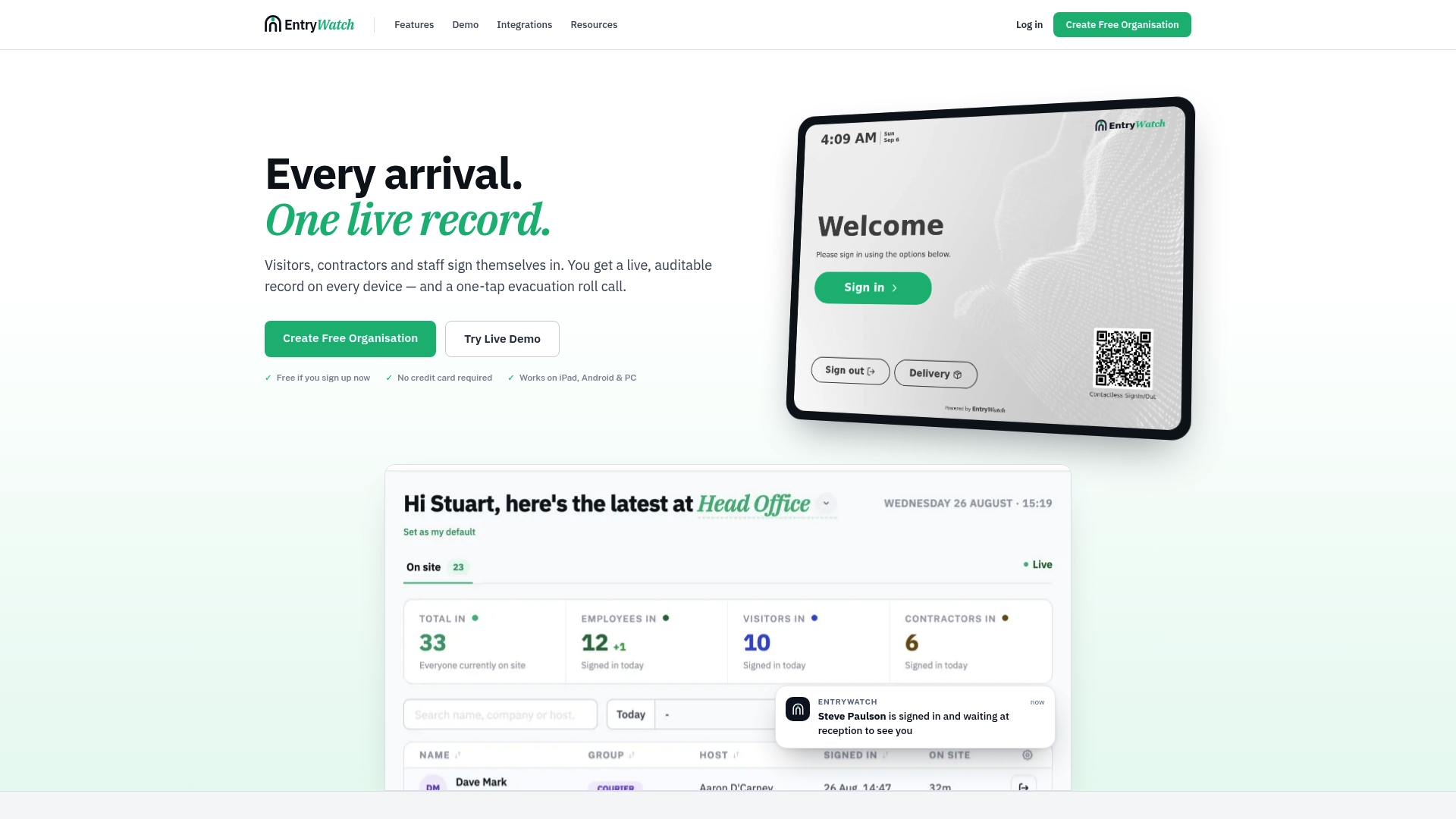
Entry pairs with kiosk stands and badge printers for a complete front-desk setup, and it connects to Google Workspace, Microsoft Entra ID, Teams, and Slack so host notifications land wherever your team already works. Every plan is currently free for founding customers until 2027, with full platform access from the start. If you’re managing sign-in across a single office or a multi-site facility, start by checking the Founding plan details and see whether a managed kiosk fits better than a custom build.
Where to Find the Official Android Kiosk Documentation
For code-level detail beyond this guide, go straight to the source. The Android Enterprise dedicated devices overview covers provisioning and policy options. The Lock Task Mode reference documents the APIs behind allowlisting. ManageEngine’s practical kiosk setup guide walks through admin-side configuration steps.
Sources
- Dedicated devices overview | Android Enterprise | Android Developers
- Android Kiosk Mode: Benefits, How to set up Android Kiosk?
FAQ
Can I Use Android Kiosk Mode Without an MDM?
Yes, for a single device or a small test you can use ADB or manual device-owner provisioning without an EMM. Once you’re managing more than a handful of tablets, an EMM becomes necessary for remote configuration, update scheduling, and troubleshooting without onsite visits.
Is There a Free Android Kiosk Mode App?
Open-source options exist, including FreeKiosk, which supports device-owner mode and headless ADB provisioning at no license cost. The trade-off is that you need in-house technical expertise for setup, and there’s no managed cloud fleet dashboard behind it.
Can I Exit Kiosk Mode Without a PIN?
It depends on how the deployment was configured. A properly locked-down device with Lock Task Mode and user restrictions in place should only exit through an admin command from an EMM or a defined maintenance-mode sequence, not through a simple button combination.
How Do I Turn On Kiosk Mode on an Android Device?
For production use, enroll the device as a dedicated device through Android Enterprise, set your app allowlist with setLockTaskPackages(), and configure the app as the persistent home activity. For a quick single-app demo, basic screen pinning is available directly in Android’s Overview screen, though it’s not suitable for unattended deployments.
Does Entry Offer a Kiosk Sign-In Option for Android Tablets?
Yes, Entry’s mobile kiosk sign-in runs on Android and iPad tablets and includes contactless check-in, digital forms, and emergency roll call without requiring separate kiosk lockdown configuration. Current pricing for the Founding plan is available on the Entry pricing page.