%20--%3e%3cdefs%3e%3cstyle%3e%20.st0%20{%20fill:%20none;%20stroke:%20%230f172a;%20stroke-linecap:%20round;%20stroke-width:%205.5px;%20}%20.st1%20{%20fill:%20%2310b981;%20}%20%3c/style%3e%3c/defs%3e%3cpath%20class='st0'%20d='M2.75,42.01v-20.12C2.75,11.32,11.32,2.75,21.89,2.75s19.14,8.57,19.14,19.14v20.12'/%3e%3cpath%20class='st0'%20d='M14.12,42.01v-13.62c0-4.29,3.48-7.78,7.78-7.78s7.78,3.48,7.78,7.78v13.62'/%3e%3ccircle%20class='st1'%20cx='21.89'%20cy='11.74'%20r='4.98'/%3e%3c/svg%3e)
From One iPad to a Fleet: iPad Kiosk Mode Choices for Site Managers

Guided Access is the fastest way to lock a single iPad to one app, and it needs no supervision or extra software. For a public kiosk fleet, though, the correct approach is a supervised iPad running Single App Mode through an MDM, which gives you remote control and tamper resistance. Autonomous Single App Mode (ASAM) sits between the two, letting an app trigger lockdown on its own for session-based tasks like exams or checkout flows.
TL;DR:
- Guided Access is suitable for temporary, single-device use but lacks remote management, making it unreliable for large or long-term deployments.
- Single App Mode, enforced via MDM on supervised devices, offers deeper control, including remote updates and restrictions, ideal for fleet management.
- Autonomous Single App Mode allows apps to toggle lockdown sessions independently, fitting specific workflows like testing or self-service kiosks.
- Forgotten passcodes or device crashes require full resets or remote deactivation through MDM, emphasizing the importance of proper management for scale.
- Pairing supervised iPads with MDM and kiosk software like EntryWatch ensures reliable operation, security, and compliance at high-traffic or multi-site locations.
Table of Contents
- What Kiosk Mode Means on iPad: Guided Access, Single App Mode, and ASAM
- How to Enable and Configure Guided Access on iPad
- How to Set Up Supervised iPads and Single App Mode via MDM
- Troubleshooting: Exit, Recovery, and Common Problems
- Best Practices for Secure and Reliable iPad Kiosks
- EntryWatch Use Cases: Visitor-Management Kiosks on iPad
- The Gap Between “It’s Locked” and “It’s Manageable”
- Get a Production-Ready iPad Kiosk Running Faster
- Sources
- FAQ
What Kiosk Mode Means on iPad: Guided Access, Single App Mode, and ASAM
“Kiosk mode” isn’t one Apple feature. It’s a category that covers three distinct tools, each with a different setup cost and a different ceiling on control.
Guided Access is built into every iPad and works out of the box. Turn it on in Settings, triple-click a button, and the device is locked to whatever app is open, as Apple’s own documentation confirms. No enrollment, no extra hardware profile, no IT department required. That also makes it the weakest option for a fleet: anyone who knows the passcode can walk up and exit.
Single App Mode only runs on a supervised device, configured through Apple Configurator or a mobile device management (MDM) platform. It’s stricter: hardware buttons, touch zones, and even Wi-Fi switching can be locked down centrally. Supervision is the gate here. It’s a device state applied during setup (usually via Apple Business Manager) that unlocks the deeper restrictions regular consumer iPads simply don’t expose.
Autonomous Single App Mode (ASAM) flips the control: the app itself asks iOS to enter or exit lockdown, which suits testing software or point-of-sale apps that need to start and stop sessions without an administrator touching the device.
Quick checklist:
- One iPad, short-term, staff nearby to reset it → Guided Access
- Multiple iPads, public-facing, need remote wipe/update → Single App Mode via MDM
- An app that needs to lock/unlock itself per session → ASAM (only if the app supports it)
How to Enable and Configure Guided Access on iPad
Guided Access works on any iPad, supervised or not, and it’s the right call for a reception desk, a single trade-show tablet, or a one-off demo.
- Open Settings > Accessibility > Guided Access and toggle it on.
- Tap Passcode Settings and set a Guided Access passcode, separate from your device passcode, or enable Touch ID/Face ID for exit.
- Open the app you want to lock the iPad to.
- Triple-click the Side button (or Home button on older models) to launch a Guided Access session.
- Before tapping Start, tap Options to fine-tune the session.
Inside Options, disable Sleep/Wake Button so no one can power the screen off, turn off Volume Buttons if audio tampering is a concern, and set a Time Limit if the session should end automatically, useful for timed exhibits or exam-style tasks. You can also circle areas of the screen with your finger to disable touch in specific zones, handy for hiding a settings icon buried inside a third-party app.
Tap Start, and the iPad is now locked to that single app. Triple-click again and enter the passcode to exit.
Pro Tip: Test the disabled screen zones before deployment. Guided Access remembers gesture areas per app, so if you update the app and its layout shifts, the “dead zone” you drew may no longer cover the element you meant to hide.
If a passcode is forgotten and the device isn’t otherwise managed, you’re stuck waiting out the session timer or performing a hard reset, which erases the iPad. That single point of failure is the main reason Guided Access doesn’t scale past a handful of devices.
How to Set Up Supervised iPads and Single App Mode via MDM
Single App Mode is the production standard, and TechTarget’s guidance on enterprise kiosk deployment is blunt about why: Guided Access has no remote management layer, so at any real scale it becomes a maintenance liability. Before you touch a kiosk profile, two prerequisites have to be in place.
Prerequisites:
- The iPad must be supervised, set during Apple Business Manager enrollment or manually through Apple Configurator on a Mac.
- The device needs to be enrolled in an MDM (or managed directly via Apple Configurator for smaller batches).
Apple Configurator flow (small batches, no MDM):
- Connect the supervised iPad to a Mac running Apple Configurator.
- Select the device, go to Actions > Advanced > Start Single App Mode.
- Choose the app to lock the device to and set any available restrictions.
- Click Apply to push the configuration.
MDM flow (fleets):
- In your MDM console, create a new kiosk profile or restrictions payload.
- Choose Single App mode and specify the exact app, or select a Multi-App kiosk type if the deployment needs a managed kiosk browser locked to specific URLs.
- Set hardware restrictions: disable the Side/Home button, touch gestures you don’t want, and auto-lock behavior.
- Assign the profile to the device group and push it. Devices pick up the profile on next check-in.
The trade-off is real: once a device sits in MDM-driven Single App Mode, local staff cannot restart it, join a new Wi-Fi network, or install updates by hand. Every one of those actions has to happen through an MDM command, which means your update and reboot schedule has to be planned in advance rather than handled ad hoc by whoever is standing next to the kiosk.
Choose ASAM over MDM-driven Single App Mode only when the kiosk app itself was built to request lockdown, and confirm that support before you commit to it as your deployment path.
Troubleshooting: Exit, Recovery, and Common Problems
Most kiosk failures fall into a handful of predictable categories, and the fix depends entirely on which mode locked the device.
- Exiting Guided Access: triple-click the Side or Home button and enter the Guided Access passcode, or authenticate with Touch ID if enabled.
- Forgotten Guided Access passcode: if the iPad is MDM-enrolled, use remote Lost Mode or configuration commands to intervene without touching the device. If it isn’t managed, re-provisioning through Apple Configurator, or a full reset, may be the only path forward.
- Ending Single App Mode: remove or deactivate the kiosk profile from the MDM console, or reconnect the device to Apple Configurator and turn Single App Mode off from the same Actions menu used to start it.
- App crashes inside kiosk mode: check the app’s own crash logs first, then re-push the configuration profile, since a corrupted profile push is a common trigger.
- Wi-Fi or update failures: because Single App Mode blocks local network changes, confirm the device’s assigned network hasn’t changed and that update windows are scheduled through MDM rather than expected to happen automatically.
Best Practices for Secure and Reliable iPad Kiosks
A locked screen solves half the problem. The other half is physical security and hygiene, especially for devices sitting unattended in a lobby or warehouse floor for months.
- Use a secured kiosk stand with a cable lock and, where possible, a port cover to block USB access.
- Set a device cleaning schedule for touchscreens in healthcare or food-service environments.
- Schedule OS and app updates through MDM during off-hours, and monitor device battery health and connectivity remotely rather than waiting for a complaint.
- Design the on-screen interface with large touch targets, plain-language instructions, and a session timeout that resets the screen between visitors.
- Avoid storing personal data locally on the device; route form submissions to a server and clear the session view immediately after each use.
Pro Tip: If your kiosk collects any personal information, sign-in details, health declarations, NDAs, build in an automatic session reset after a fixed idle period. A kiosk that lingers on someone’s completed form is a privacy problem waiting to happen.
Pairing supervised iPads with an MDM-managed kiosk stand and badge printer setup closes most of the physical gaps that software-only kiosk mode can’t address.
EntryWatch Use Cases: Visitor-Management Kiosks on iPad
A front-desk sign-in kiosk is one of the clearest real-world tests of everything above. EntryWatch’s self-service kiosk capability runs on iPad and is built for exactly the scenario where Single App Mode earns its complexity: a device standing unattended in a lobby, logistics dock, or healthcare waiting room, signing in visitors, contractors, and staff all day.
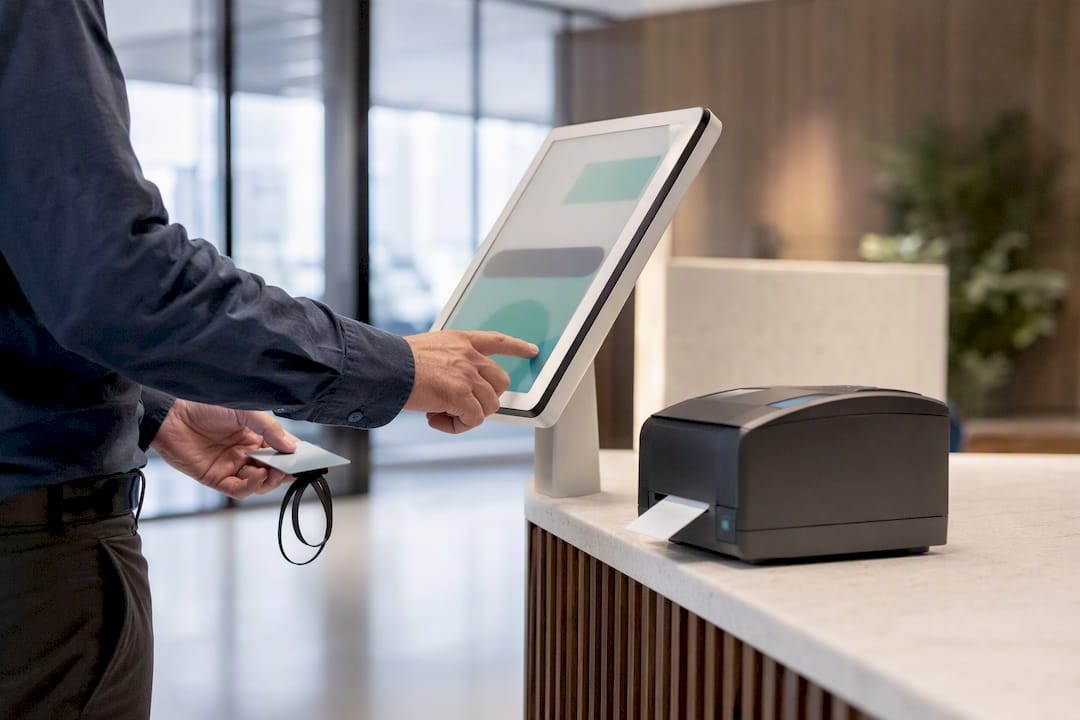
Badge printing, host notifications, and emergency roll calls all depend on the kiosk staying locked to one app and staying online. If a visitor could swipe out of the sign-in screen, you lose the live occupancy register that makes evacuation roll call and audit-ready visitor history possible in the first place. For a quick demo or a single-day event, Guided Access on one iPad is fine. For a permanent reception desk or a multi-site rollout, pairing supervised devices with MDM and EntryWatch’s kiosk software is the setup that holds up under real traffic.
The Gap Between “It’s Locked” and “It’s Manageable”
Most guides treat kiosk mode as a one-time setup task: flip a switch, walk away, done. That framing works for a single device and fails the moment you have five or fifty. The real decision isn’t “how do I lock this iPad,” it’s “who fixes it when it breaks at 6 a.m. and nobody’s on-site.”
Guided Access answers the first question well and the second question not at all. There’s no remote command, no health dashboard, no way to know a device has crashed until someone walks past it. That’s an acceptable trade for a single reception desk with staff nearby. It’s a liability for a logistics dock running three kiosks across two shifts.
The advice worth internalizing: pick your kiosk mode based on who has to maintain the device six months from now, not on how easy it is to set up today. Supervision and MDM cost you setup time up front. They buy back every hour you’d otherwise spend driving to a site to manually reset a frozen tablet.
— Flipmind
Get a Production-Ready iPad Kiosk Running Faster
Setting up Guided Access or Single App Mode gets an iPad locked down, but a locked screen alone doesn’t give you badge printing, host alerts, or an evacuation-ready occupancy log. EntryWatch handles the layer above the lockdown: contactless sign-in, real-time visitor records, and self-service kiosk operation designed to run on supervised iPads without a receptionist babysitting the queue.
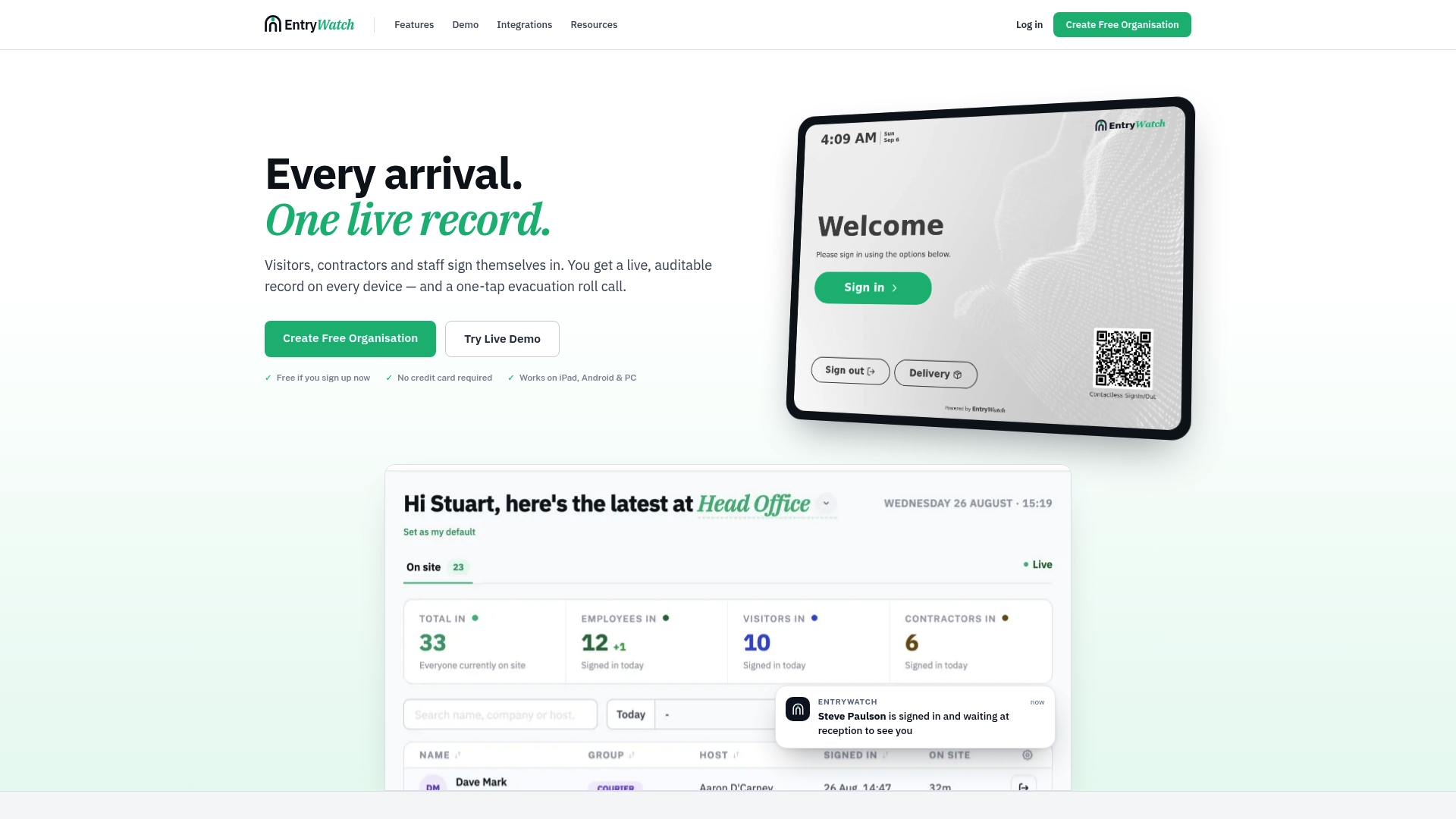
For a single-site trial, a Guided Access iPad running EntryWatch is enough to see the workflow in action. For multi-site or high-traffic locations, like logistics docks, healthcare facilities, or event venues, pair supervised devices and MDM with EntryWatch’s mobile kiosk sign-in so every device stays remotely managed and auditable. Check the visitor management overview and start a demo to see how it fits your site.
Sources
- Lock an iPad to one app with Guided Access - Apple Support
- How to set up kiosk mode for iPad and other OSes - TechTarget
FAQ
How do you get an iPad out of kiosk mode?
For Guided Access, triple-click the Side or Home button and enter the Guided Access passcode or use Touch ID. For MDM-managed Single App Mode, remove the kiosk profile from the MDM console or Apple Configurator.
How do I enable kiosk mode on an iPad?
Go to Settings > Accessibility > Guided Access for a quick single-device lock, or supervise the device through Apple Business Manager and configure Single App Mode via Apple Configurator or an MDM for a managed fleet.
What is kiosk mode used for?
Kiosk mode restricts an iPad to one app or website, commonly used for visitor sign-in desks, point-of-sale, exam software, and public information displays where you need to prevent access to the rest of the device.
How do I turn off kiosk mode on my tablet?
Exit Guided Access with the passcode or Touch ID, or, for Single App Mode, deactivate the kiosk restriction remotely through your MDM console or by reconnecting the device to Apple Configurator.
Should a visitor sign-in kiosk use Guided Access or Single App Mode?
A short-term or single-desk sign-in kiosk can run on Guided Access, but a permanent or multi-site setup, like the kind EntryWatch deploys, should use supervised devices with MDM-driven Single App Mode for remote control and audit reliability.