%20--%3e%3cdefs%3e%3cstyle%3e%20.st0%20{%20fill:%20none;%20stroke:%20%230f172a;%20stroke-linecap:%20round;%20stroke-width:%205.5px;%20}%20.st1%20{%20fill:%20%2310b981;%20}%20%3c/style%3e%3c/defs%3e%3cpath%20class='st0'%20d='M2.75,42.01v-20.12C2.75,11.32,11.32,2.75,21.89,2.75s19.14,8.57,19.14,19.14v20.12'/%3e%3cpath%20class='st0'%20d='M14.12,42.01v-13.62c0-4.29,3.48-7.78,7.78-7.78s7.78,3.48,7.78,7.78v13.62'/%3e%3ccircle%20class='st1'%20cx='21.89'%20cy='11.74'%20r='4.98'/%3e%3c/svg%3e)
Offline Evacuation Roll Call: Self Check In Kiosk for Safety Teams
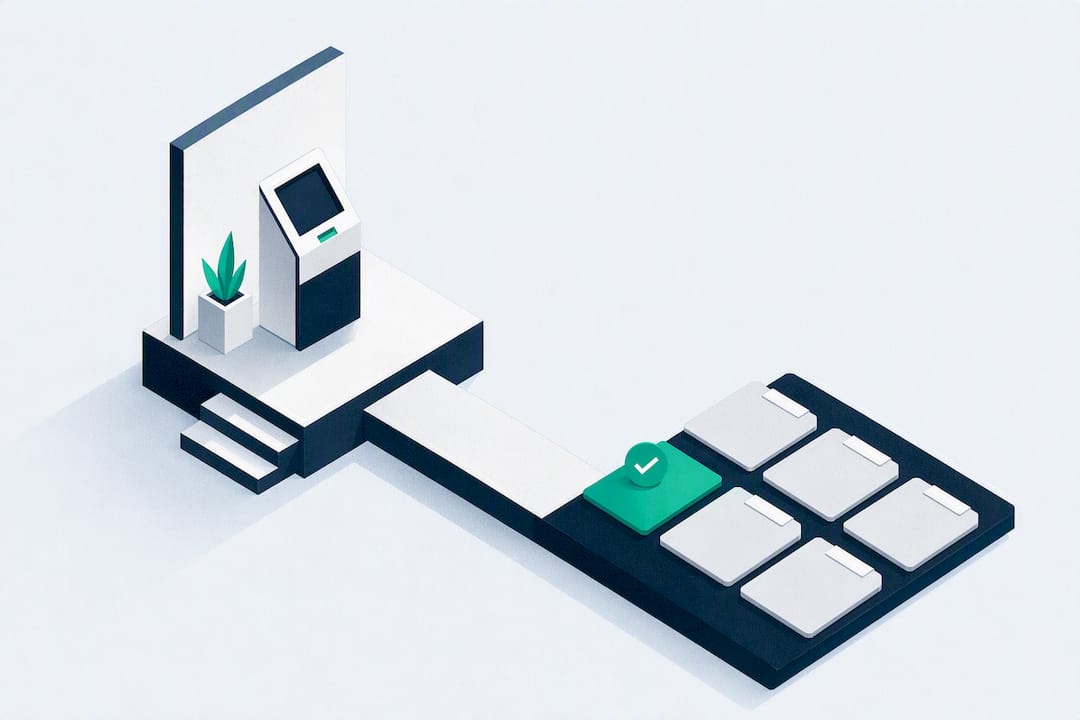
A workplace self check-in kiosk is a tablet or dedicated terminal tied to your visitor management system that lets visitors, contractors, and staff sign in without waiting for reception. It cuts lobby check-in time, produces a real-time, auditable list of who’s on site, and gives you an emergency roll call you can trust. If you’re evaluating one, start by mapping your visitor types and peak lobby volumes, then request a demo to see how the flow handles your busiest hour.
TL;DR:
- Pre-registered check-ins with QR codes can finish in under 30 seconds, while walk-in check-ins depend on verification requirements and take longer.
- Offline mode with local caching is essential for kiosks to function during Wi-Fi outages, ensuring no disruptions in check-in and emergency roll-calls.
- Proper integration of ID verification and watchlist screening can be achieved without added friction for routine visitors, especially on regulated sites.
- Surveillance of check-in throughput and occupancy reporting enables effective management of multiple locations and peak visitor times.
- Hardware choices between tablets and dedicated kiosks significantly impact upfront costs, flexibility, and durability, with software sync features being a common requirement.
Table of Contents
- What Is a Self Check-In Kiosk and How Does It Work?
- What Features Should You Demand in a Kiosk Demo?
- How Do You Roll Out a Kiosk Without Disrupting Reception?
- What Security and Privacy Controls Should You Verify?
- Tablet Kiosks or Dedicated Hardware: Which Fits Your Site?
- What Changes in Your First 90 Days With a Kiosk?
- Ready to Pilot a Self-Service Kiosk at Your Site?
- Sources
- FAQ
What Is a Self Check-In Kiosk and How Does It Work?
The kiosk itself is just the visible part. A tablet or stand, sometimes with a badge printer attached, handles the screen taps. The real work happens in the visitor management software running behind it, which checks identity, notifies hosts, and writes every entry to a permanent log.
Two paths lead a visitor to that log. A host can send an invite ahead of time, the visitor gets a QR code, and scanning it at the kiosk pulls up their details in seconds. A walk-in visitor instead selects their host from a directory list, enters basic details, and completes any required steps on the spot. Vendor data shows pre-registered check-ins can finish in under 30 seconds, while walk-ins take longer depending on what verification you require.
Beyond the basic flow, most systems support:
- Photo capture at the kiosk for visual verification on badges and logs
- ID scanning for contractors or regulated site visits
- Digital forms (NDAs, health declarations, induction acknowledgments) that must be signed before check-in completes
- Watchlist screening that flags a visitor before they reach the floor
- Automatic host notification by email, SMS, or chat, and an evacuation-ready checkout record
Digital systems like this replace the manual sign-in sheet, and industry reporting shows the shift cuts average check-in time from roughly 15 minutes to around 5.
What Features Should You Demand in a Kiosk Demo?
Not every vendor demo covers what actually matters once the kiosk is live in your lobby. Use this order during procurement, because the first few items determine whether the rest of the system holds up under real traffic.
- Contactless check-in options. QR code scanning and mobile pre-registration should work without touching the screen, and the kiosk needs an offline mode that keeps working when Wi-Fi drops.
- Flexible check-in flows by visitor type. A delivery driver, a job candidate, and a contractor doing site work should not go through the identical form. Ask to see how the system branches logic and attaches the right digital forms to each group.
- Badge output that matches your risk tolerance. Decide between printed badges and ePaper badges, and confirm the system only prints or issues a badge after check-in is fully complete, not before. A pre-printed badge sitting at reception can end up in the wrong hands.
- ID verification and watchlist screening. For regulated sites, this is not optional. Ask how photo capture and ID scans integrate into the flow without adding friction for routine visitors.
- Host notifications across the tools your team already uses. Email and SMS are the baseline; Teams and Slack alerts matter if your staff live in chat all day. Confirm directory sync with Google Workspace or Microsoft Entra ID so host lists stay current without manual updates.
- Analytics on throughput and occupancy. You’ll want reporting that shows check-in volume by hour and site, especially once you’re running more than one location.
Pro Tip: Ask every vendor to demo the “badge printed before check-in completes” scenario. If they can’t show you the safeguard, assume it doesn’t exist.
How Do You Roll Out a Kiosk Without Disrupting Reception?
A kiosk rollout fails more often from missed logistics than from bad software. Walk through these steps before your go-live date.
- Survey the site. Check power outlet locations near your entry point, confirm whether you’ll run wired ethernet or Wi-Fi, and note peak footfall times and accessibility requirements for the stand height.
- Pick hardware and mounting. A tablet on a secured stand works for most offices; higher-traffic sites benefit from anchored enclosures and tidy cable runs that don’t become a trip hazard.
- Design for outages. Confirm the kiosk caches check-ins locally and syncs once connectivity returns. Wired connections tend to be more stable than Wi-Fi in high-traffic lobbies, so test failover before trusting it.
- Update staffing and signage. Reception staff shift from processing every sign-in to handling exceptions and guest questions. Put clear signage at the kiosk so first-time visitors don’t hesitate.
- Pilot before you scale. Measure actual throughput, run a real evacuation drill using the kiosk’s roll-call export, and stress-test the badge printer under back-to-back use.
- Set a maintenance plan. Badge stock, printer ribbons, and firmware updates need an owner and a schedule, not an afterthought.
One data point worth building your pilot around: tablet-based kiosk hardware runs roughly $200 to $400 while dedicated kiosk hardware runs $600 to $1,200, so your hardware choice alone can shift total project cost by a wide margin before software licensing even enters the picture.
What Security and Privacy Controls Should You Verify?
Every kiosk vendor will claim compliance. Verify it yourself against this list before signing anything.
- Confirm the system exports a real-time, auditable roll-call list you can hand to a fire warden during an evacuation, not just a static report generated overnight.
- Ask exactly where visitor data is stored, how long it’s retained, and whether it’s encrypted both at rest and in transit.
- Check that the kiosk displays privacy consent language at the point of sign-in, supports multiple languages if your site needs it, and that you have a public privacy policy reference to point visitors toward.
- Test what happens to cached data during an offline period and how the system reconciles it once back online. Also confirm who has admin access to change kiosk settings remotely.
- Ask whether the platform can connect to your access control system or alarm panel, since evacuation and roll-call value depends on the VMS having a real-time, accurate list the moment an alarm sounds.
Recordkeeping discipline matters here too. Solid operational logging practices reduce the chance of gaps in your visitor history when an audit or incident review calls for one.
Tablet Kiosks or Dedicated Hardware: Which Fits Your Site?
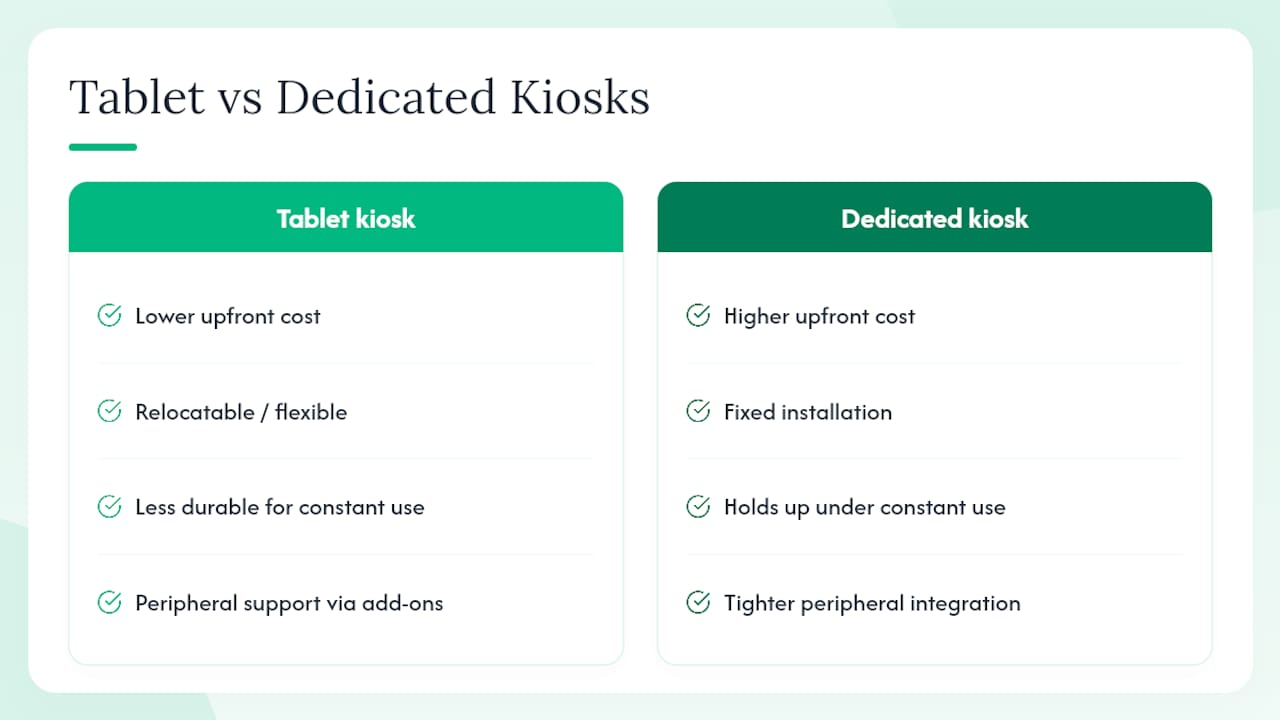
A tablet on a stand, paired with an optional badge printer, costs less and gives you flexibility to relocate or swap units. Dedicated kiosk hardware costs more but holds up better under constant use and often integrates peripherals more tightly. Printed badges add small per-visit costs and paper waste; ePaper badges cut both but need a slightly bigger upfront investment. Whichever you choose, confirm directory sync with Google Workspace or Microsoft Entra ID, chat alerts through Teams or Slack, and physical mounting that meets ADA accessibility requirements at your entrance.
What Changes in Your First 90 Days With a Kiosk?
Expect check-in time to drop noticeably and reception interruptions to fall off fast, since most routine sign-ins no longer need a person. Evacuation lists get sharper too. Features like a self-service kiosk, an evacuation roll-call, and dedicated staff sign-in work together so your headcount during a drill is accurate, not a guess. Set your pilot’s success metric before launch, either average check-in time or reduction in reception interruptions, so you’re judging the rollout on evidence instead of impressions.
— Flipmind
Ready to Pilot a Self-Service Kiosk at Your Site?
Operations teams can achieve a working kiosk more quickly than by building a visitor process from scratch or patching together a paper log with a separate badge printer. The mobile kiosk sign-in supports QR pre-registration and walk-in flows on the same tablet, prints badges only after check-in completes, and feeds directly into a live evacuation roll call so your fire warden never works from a guess.
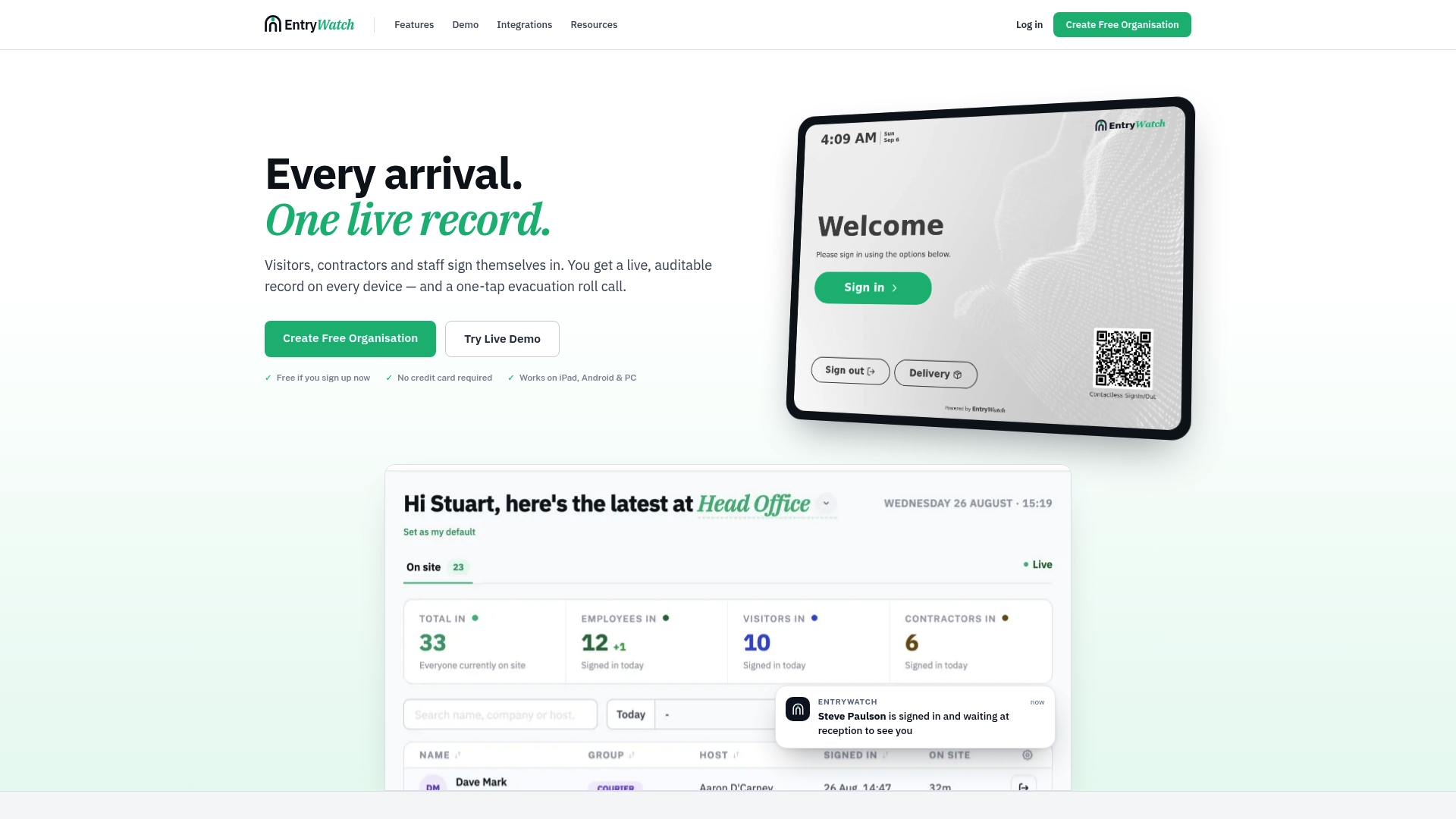
If your site handles contractors, deliveries, and visitors across multiple entry points, the visitor management system ties it all into one auditable record instead of separate logs per location. Request a demo, walk through your busiest hour with the Entry team, and see the check-in flow handle your actual visitor types before you commit to hardware.
Sources
For deeper reading on throughput data and hardware costs, see Johnson Controls on visitor management efficiency and Woxday on kiosk cost comparisons.
FAQ
What Is a Self Check-In Kiosk Used For?
It lets visitors, contractors, and staff sign in and out without reception staff processing each entry, while feeding a real-time, auditable log into your visitor management system.
How Long Does a Kiosk Check-In Take?
Pre-registered visitors using a QR code can complete check-in in under 30 seconds, while manual walk-ins with forms or ID verification take longer.
Do Kiosks Work if the Internet Goes Down?
A properly configured kiosk should include offline mode with local caching, then sync automatically once connectivity returns, which is a feature you should test during your pilot, not assume.
Can a Kiosk Print an Evacuation Roll Call?
Yes. Systems like Entry’s evacuation roll-call feature export the live occupancy register instantly so a warden can account for everyone on site during a drill or real emergency.
How Much Does a Self Check-In Kiosk Cost?
Tablet-based hardware runs roughly $200 to $400, while dedicated kiosk hardware runs $600 to $1,200, with software licensing as a separate ongoing cost.