%20--%3e%3cdefs%3e%3cstyle%3e%20.st0%20{%20fill:%20none;%20stroke:%20%230f172a;%20stroke-linecap:%20round;%20stroke-width:%205.5px;%20}%20.st1%20{%20fill:%20%2310b981;%20}%20%3c/style%3e%3c/defs%3e%3cpath%20class='st0'%20d='M2.75,42.01v-20.12C2.75,11.32,11.32,2.75,21.89,2.75s19.14,8.57,19.14,19.14v20.12'/%3e%3cpath%20class='st0'%20d='M14.12,42.01v-13.62c0-4.29,3.48-7.78,7.78-7.78s7.78,3.48,7.78,7.78v13.62'/%3e%3ccircle%20class='st1'%20cx='21.89'%20cy='11.74'%20r='4.98'/%3e%3c/svg%3e)
Scale Windows Kiosk Mode: PowerShell, PPKG, Intune for IT Admins
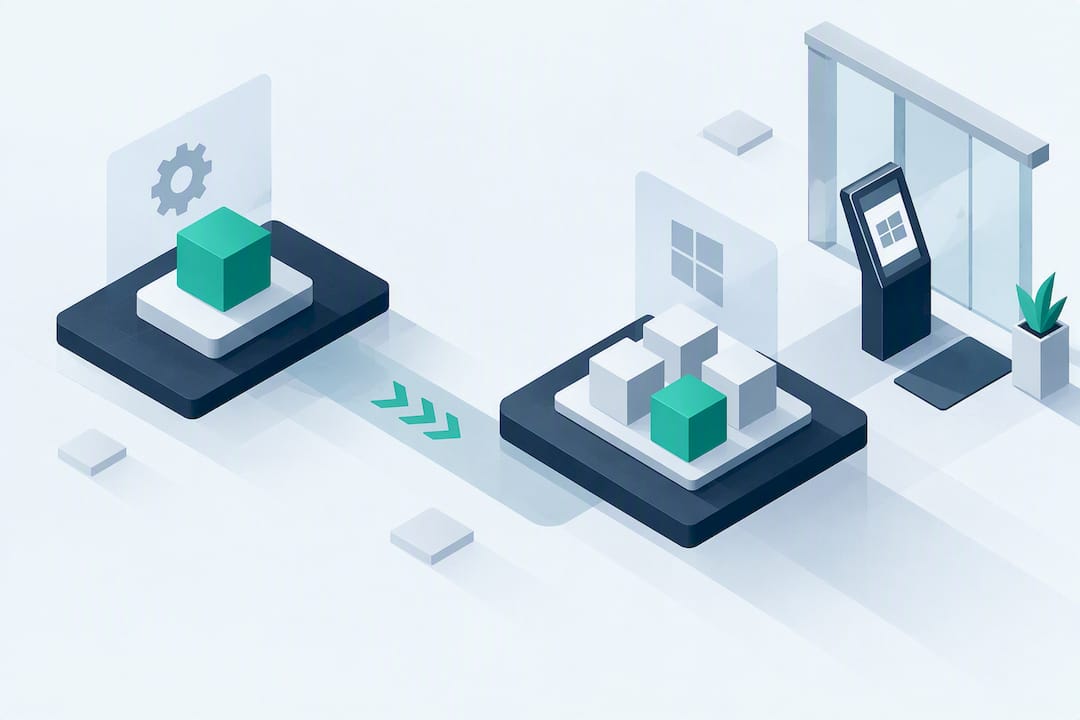
Windows kiosk mode, built on Assigned Access, locks a device to one app or a fixed set of apps so users can’t reach the desktop or other software. Pick Microsoft Edge kiosk mode for web sign-in and digital signage, Assigned Access for UWP or Edge apps above the lock screen, and Shell Launcher when a desktop app needs to fully replace Explorer. Use Settings for one or two devices; move to PowerShell, provisioning packages, or Intune once you’re deploying at scale.
TL;DR:
- Windows kiosk modes support single-app, multi-app, and Shell Launcher configurations that are compatible only with Pro, Enterprise, Education, and IoT editions, not Windows Home.
- Deployment methods vary based on device quantity, from manual setup via Settings for small numbers to MDM profiles for large fleets, with Intune supporting only one kiosk profile per device.
- Building the AssignedAccess XML configuration requires specifying app identifiers, user accounts, and exit sequences, and must be carefully tested on physical devices to prevent setup failures.
- Most setup issues stem from app AUMID changes, unsupported remote sessions, or deploying Shell Launcher on incompatible editions, emphasizing proper testing and device monitoring.
- For visitor sign-in kiosks, combining Windows kiosk mode with a platform like Entry enables contactless sign-in, digital forms, and integrated identity management, supporting a reliable, scalable lobby solution.
Table of Contents
- What Are the Different Windows Kiosk Mode Experience Types?
- Which Deployment Method Fits Your Rollout Size?
- What Are the Limits of Intune Kiosk Profiles?
- How Do You Build the AssignedAccess XML Configuration?
- How Do You Test, Exit, and Remove Kiosk Mode?
- What Causes Most Windows Kiosk Setup Problems?
- Why Visitor Kiosks Need the Same Discipline as Any Locked-Down Device
- See Your Kiosk Fleet Handle Visitor Sign-In, Not Just App Lockdown
- Where to Find the Official Kiosk Configuration Docs
- Sources
- FAQ
What Are the Different Windows Kiosk Mode Experience Types?
Windows kiosk configuration isn’t one setting. It’s a family of options, and picking the wrong one causes most of the deployment headaches admins run into later.
A single-app kiosk runs one program full screen and restarts it automatically if it closes or crashes. A multi-app kiosk (technically a “restricted user experience”) gives the signed-in account a customized Start menu showing only the apps you’ve allowed. This works well on shared devices where different staff need slightly different tool access.
Assigned Access is supported on Pro, Enterprise, Enterprise LTSC, Education, and IoT Enterprise/LTSC editions of Windows 10 and 11. Windows Home does not support it.
The main modes break down like this:
- Single-app Assigned Access: one UWP or Edge app runs above the lock screen and auto-relaunches if closed.
- Multi-app Assigned Access: a restricted Start menu with a curated app set, ideal for shared front-desk or warehouse terminals.
- Shell Launcher: replaces Explorer.exe entirely, so a desktop application becomes the actual shell. It only runs on Enterprise and Education editions.
- Microsoft Edge kiosk mode: offers Digital/Interactive Signage for full-screen display and Public Browsing for a locked-down browser, both running in InPrivate sessions so no visitor data persists between users.
Which Deployment Method Fits Your Rollout Size?
The method you choose should track your device count, not your personal preference for the GUI. TechTarget’s breakdown of Windows 11 kiosk mode setup lines up four practical paths, and each one solves a different scale problem.
- Settings app: Go to Accounts, then Other users, then Set up a kiosk. This wizard walks you through assigning an app to a local account in a couple of minutes. Fine for a receptionist’s tablet or a single lobby screen, but there’s no way to script it or replicate it across a fleet.
- PowerShell:
Set-AssignedAccessconfigures a kiosk profile directly through the MDM Bridge WMI Provider, andClear-AssignedAccessremoves it. This is the fastest way to build repeatable, version-controlled setup scripts. - Windows Configuration Designer: Build a provisioning package (PPKG) that bundles your Assigned Access XML, network settings, and provisioning commands into one file. Run it from a USB drive on offline devices or during imaging, which makes it a strong fit for staged or air-gapped rollouts.
- MDM/Intune: Push kiosk configuration profiles centrally to enrolled devices, often paired with Windows Autopilot for zero-touch provisioning. This is the only method built for managing hundreds of kiosks across multiple sites without touching each unit by hand.
What Are the Limits of Intune Kiosk Profiles?
Intune supports both single-app and multi-app kiosk profiles, but there’s a catch that trips up a lot of admins during their first fleet deployment: a device can only carry one kiosk profile at a time. If you need finer control, like different app sets for different shifts, you’ll need a custom OMA-URI profile layered on top of the standard template.
A few things to watch when building your profile:
- Specify Edge’s kiosk behavior (signage or public browsing) inside the same profile rather than as a separate policy, since Intune ties browser mode to the kiosk configuration.
- Add Win32 apps by referencing their AUMID, or use a wrapper script if the app doesn’t expose one cleanly.
- Assign kiosk profiles to device groups, not user groups. Kiosk policy targets the machine, and mixing assignment types is a common cause of profiles silently failing to apply.
Pro Tip: Stage new kiosk profiles against a pilot device group first. Intune profile conflicts often show up only after sync, and catching them on three machines beats catching them on three hundred.
How Do You Build the AssignedAccess XML Configuration?
Whether you deploy through Intune, a provisioning package, or PowerShell, most kiosk setups trace back to the same artifact: an AssignedAccess XML configuration applied through the AssignedAccess CSP. Knowing which fields to edit saves you from copying a sample file that doesn’t match your environment.
The template centers on a few key elements:
- Profiles: defines one or more kiosk profiles, each with an ID and a list of allowed apps.
- KioskModeApp: points to the app that runs, referenced by its AUMID for UWP and Store apps.
- AutoLogonAccount or a mapped local/Azure AD account: determines which identity the kiosk session logs on as.
- BreakoutSequence: sets the key combination that lets an admin exit the kiosk shell.
For a Store or UWP app, you’ll need its Application User Model ID (AUMID), which you can pull with Get-AppxPackage and Get-AppxPackageManifest in PowerShell. Desktop apps and Edge require a ClassicAppPath entry pointing to the executable instead, since they don’t carry an AUMID the same way.
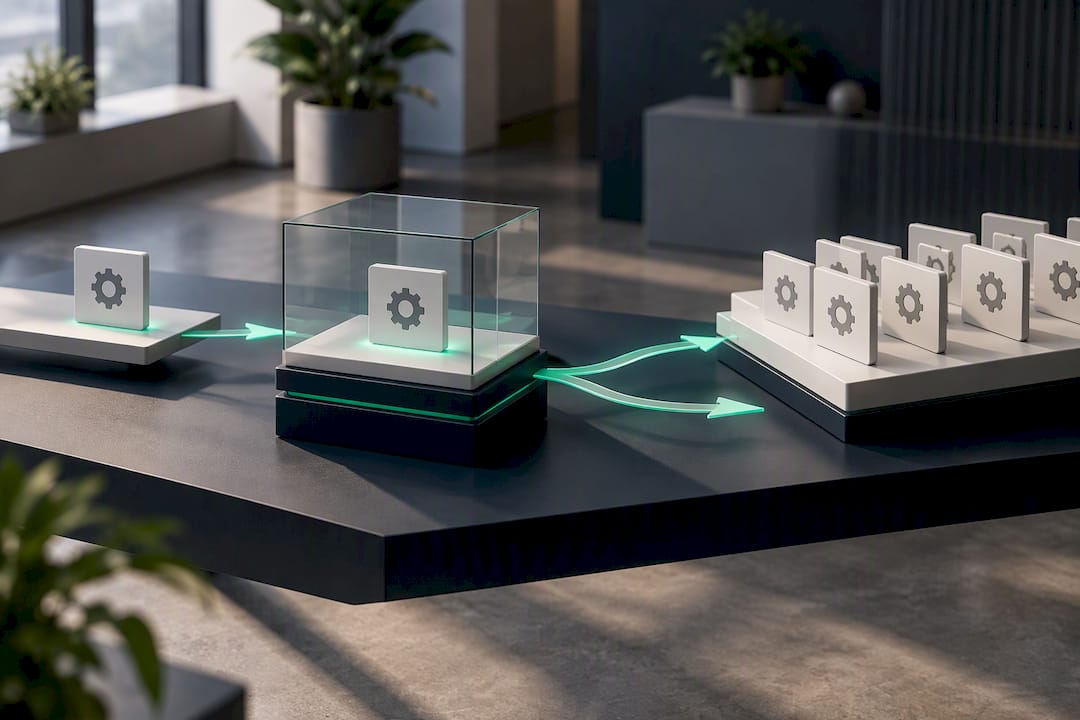
Once the XML is ready, apply it with Set-AssignedAccess -AppUserModelId <AUMID> -UserSID <SID> for a quick single-app test, or import the full profile through Intune’s custom configuration for multi-app rollouts. Scripting through the MDM Bridge WMI Provider requires SYSTEM context, so test locally with a tool like psexec -i -s powershell.exe before pushing anything to production.
How Do You Test, Exit, and Remove Kiosk Mode?
Validation should never be skipped, since a kiosk profile that looks correct in XML can still fail to launch on the actual hardware.
- Sign in as the kiosk account and confirm the app launches above the lock screen (Assigned Access) or that it fully replaces the desktop (Shell Launcher).
- Test the exit path. The default breakout is Ctrl+Alt+Del, and a custom
BreakoutSequenceshould be verified the same way. - Check idle behavior. The kiosk app relaunches automatically after a default 30-second timeout, adjustable through the IdleTimeOut registry key, set in hexadecimal milliseconds. Note that this key has no effect on Edge kiosk mode, which manages its own session timing.
- To remove kiosk configuration, run
Clear-AssignedAccess, uninstall the provisioning package from Settings, or unassign the profile in Intune. Expect some residual Start menu customization until the device fully re-syncs.
What Causes Most Windows Kiosk Setup Problems?
Most kiosk incidents trace back to a handful of repeat offenders, and heading them off early saves a lot of on-site troubleshooting later.
- App updates can silently change a UWP app’s AUMID, breaking the kiosk profile until you re-map it. Build AUMID verification into your patch testing process.
- Assigned Access doesn’t reliably run over RDP, and some configurations aren’t supported at all in a remote session. Test on physical hardware or local console access instead.
- Virtual machines don’t always trigger touch keyboard behavior the way physical touchscreens do, so a kiosk that looks fine in a VM can misbehave on the actual terminal.
- Shell Launcher only works on Enterprise and Education editions. Trying to deploy it to Pro devices is a common and entirely avoidable failure point.
- Set up MDM alerts for offline devices, low disk space, and CPU spikes so a frozen kiosk gets flagged before a visitor or employee notices it.
Pro Tip: Keep one spare kiosk device configured identically to your fleet, and reproduce every reported issue on it before touching a live unit in the lobby.
Why Visitor Kiosks Need the Same Discipline as Any Locked-Down Device
Everything covered here applies directly to visitor sign-in kiosks, not just line-of-business terminals. Entry’s self-service kiosk runs on a web-based flow, which fits naturally into Microsoft Edge kiosk mode for contactless sign-in and badge printing at a front desk. A kiosk that’s locked down correctly, with a clean exit path and predictable idle behavior, is what keeps a lobby check-in point stable through a full day of walk-ins without a helpdesk ticket. That reliability matters just as much for a receptionist app as it does for a visitor terminal tracking who’s on-site during an emergency roll call.
— Flipmind
See Your Kiosk Fleet Handle Visitor Sign-In, Not Just App Lockdown
A locked-down Windows kiosk is only half the job. The other half is what runs on it, and that’s where Entry fits into your deployment. Entry pairs a self-service kiosk experience with real-time, auditable entry records, so once your device is locked to a browser or app, visitors, contractors, and employees can sign in without queuing at reception.
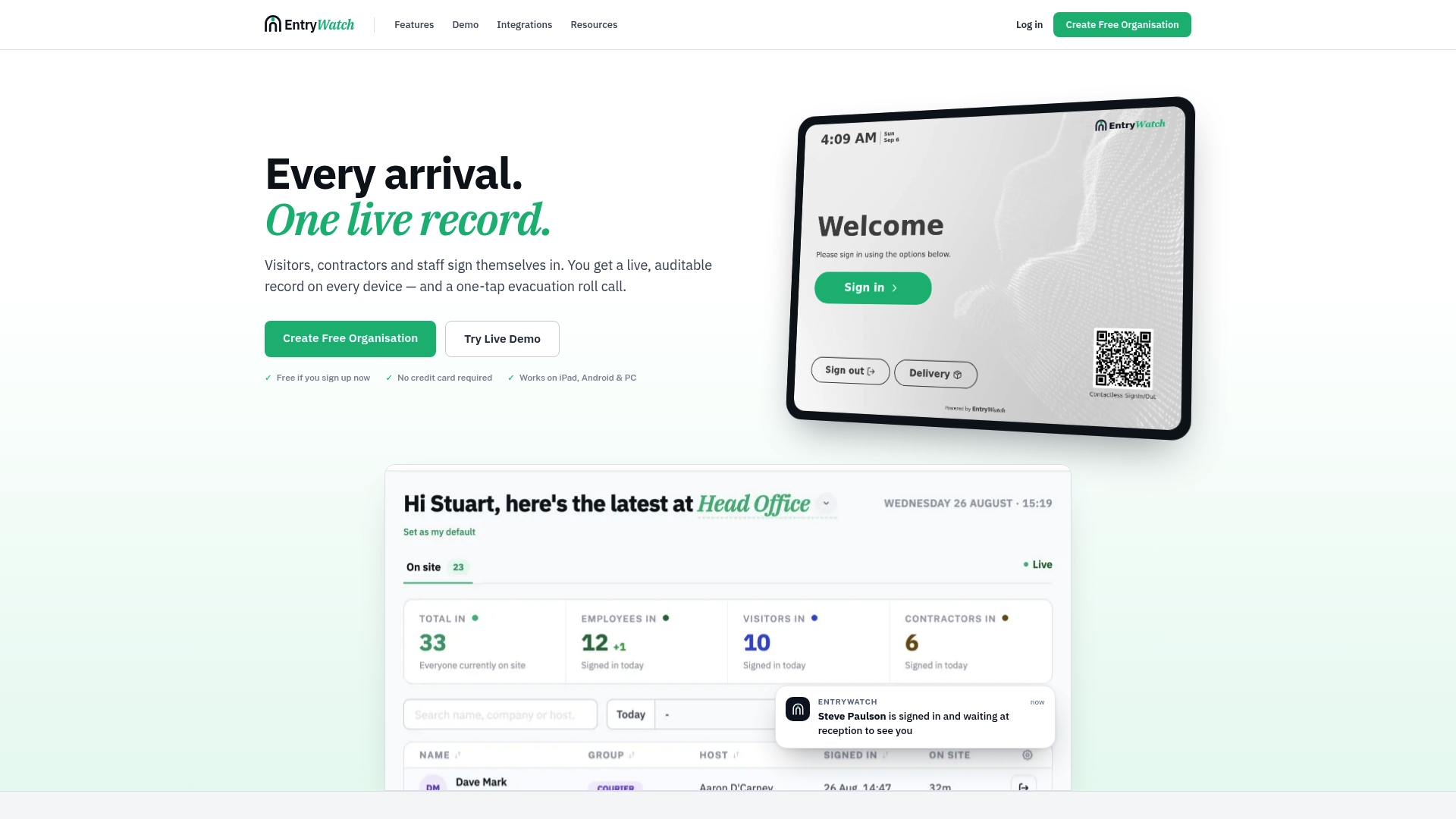
Entry’s visitor management platform covers contactless sign-in, digital forms, host notifications through Teams and Slack, and integration with Microsoft Entra ID, so your kiosk hardware plugs straight into the identity systems you already manage. Need the physical setup too? Entry resells kiosk stands and badge printers so your lobby terminal looks finished on day one, not improvised. Founding customers get the complete platform free until 2027, which makes it a low-risk way to trial a pilot kiosk before rolling out across multiple sites. Check current plans or contact sales to scope a hardware bundle for your first deployment.
Where to Find the Official Kiosk Configuration Docs
For exact command syntax and the most current supported settings, work from Microsoft’s own references rather than third-party summaries:
- Assigned Access configuration overview and quickstarts
- Configure a single-app kiosk with Assigned Access
- Intune kiosk settings for Windows devices
- Microsoft Edge kiosk mode configuration
If you’re building a custom web front end for a kiosk rather than using Edge directly, it’s also worth scanning low-code options like the ones covered in this AppSheet alternatives roundup before committing to a build-versus-buy decision.
Sources
- Windows Single-App and Multi-App Kiosk Configuration Options Overview | Microsoft Learn
- Kiosk settings for Windows and Holographic devices in Microsoft Intune - Microsoft Intune | Microsoft Learn
- Setting up Windows 11 kiosk mode with 4 different methods | TechTarget
FAQ
How Do You Put Windows Into Kiosk Mode?
Open Settings, go to Accounts, then Other users, and select Set up a kiosk for a single device. For repeatable or fleet-wide setups, use PowerShell’s Set-AssignedAccess cmdlet, a provisioning package built in Windows Configuration Designer, or an Intune kiosk profile pushed to enrolled devices.
Does Windows 11 Have a Kiosk Mode?
Yes. Windows 11 supports Assigned Access single-app and multi-app kiosk modes on Pro, Enterprise, Education, and IoT Enterprise/LTSC editions, plus Microsoft Edge’s dedicated kiosk mode for web-based sign-in and digital signage.
How Do I Enable Kiosk Mode Without Scripting?
Use the Settings app’s kiosk wizard under Accounts, then Other users. It walks you through picking a local account and assigning one app, which is the quickest path for a single receptionist tablet or lobby screen, though it won’t scale to multiple devices without manual repetition.
What Is Kiosk Mode in Windows 10, and How Is It Different From Windows 11?
Windows 10 kiosk mode uses the same Assigned Access framework as Windows 11: single-app, multi-app, and Shell Launcher options, applied through Settings, PowerShell, provisioning packages, or MDM. The core AssignedAccess XML structure and CSP behavior carry over largely unchanged between the two versions.
Can a Visitor Sign-In Kiosk Use Windows Kiosk Mode?
Yes, and it’s a common setup for lobby check-in terminals. Running Edge in kiosk mode for a browser-based sign-in flow, paired with a platform like Entry’s mobile kiosk sign-in, locks the device to the check-in page while still letting visitors complete forms and print badges.