%20--%3e%3cdefs%3e%3cstyle%3e%20.st0%20{%20fill:%20none;%20stroke:%20%230f172a;%20stroke-linecap:%20round;%20stroke-width:%205.5px;%20}%20.st1%20{%20fill:%20%2310b981;%20}%20%3c/style%3e%3c/defs%3e%3cpath%20class='st0'%20d='M2.75,42.01v-20.12C2.75,11.32,11.32,2.75,21.89,2.75s19.14,8.57,19.14,19.14v20.12'/%3e%3cpath%20class='st0'%20d='M14.12,42.01v-13.62c0-4.29,3.48-7.78,7.78-7.78s7.78,3.48,7.78,7.78v13.62'/%3e%3ccircle%20class='st1'%20cx='21.89'%20cy='11.74'%20r='4.98'/%3e%3c/svg%3e)
iPad Visitor Sign In: Six Point Setup to Deploy Fast
The fastest way to replace a paper logbook is an iPad running a cloud visitor-management app in kiosk mode. It handles sign-in, host alerts, and evacuation records without extra hardware. There are several iPad-ready visitor management options built for this. Test it on a spare iPad, turn on kiosk mode, and run a sample sign-in before you commit to a full rollout.
TL;DR:
Reliable Wi-Fi, straightforward kiosk setup, and evacuation reporting are prioritized by users over flashy features like custom branding.
Most systems support essential features such as contactless check-in, custom forms, ID or photo capture, and instant host notifications, often within a simple setup process.
Cloud storage with encryption and role-based access remains the standard, but local data storage can suit sites with strict network policies.
A pilot run should last at least a full business day to uncover network issues, consent form problems, or hardware compatibility gaps before full deployment.
EntryWatch offers a contactless, multi-site solution that supports exportable logs and real-time evacuation lists, with a free trial available until 2027.
Table of Contents
What a Good iPad Sign-In Setup Must Do
Not every visitor app deserves a spot on your reception desk. Before you shortlist anything, check it against the features that actually matter once real visitors, contractors, and deliveries start walking through the door.
A dependable iPad visitor sign-in setup should cover:
-
Self-service check-in with pre-registration and QR or contactless options so visitors don’t queue at a desk
-
Custom forms for consent, NDAs, health declarations, or site-specific screening questions
-
Photo capture or ID scanning to attach a visual record to each entry
-
Badge printing and automatic host notifications the moment someone signs in
-
Evacuation roll-call that produces a live, exportable list of who’s on-site
-
Multi-site management and integrations with calendars, Teams, or Slack
Marketplace comparisons of iPad-capable visitor management software show these six categories are what buyers actually compare, not marketing extras. Skip a feature here and you’ll likely patch the gap with a spreadsheet later, which defeats the point of going digital in the first place.
How Do You Set Up an iPad as a Visitor Kiosk?
Turning a standard iPad into a reliable kiosk is mostly a checklist, not a technical project. Get the sequence right and you avoid the two most common failure points: shaky Wi-Fi and a visitor accidentally exiting the app.
-
Confirm iPadOS version and camera support. Older iPads can run most sign-in apps, but a recent iPadOS version and a working front camera matter for photo capture and ID scans.
-
Pick a secure stand or enclosure. A countertop mount or wall bracket keeps the device from wandering off or getting knocked over during busy periods.
-
Plan printer connectivity. Decide whether your badge printer connects over Wi-Fi, Bluetooth, or a shared network before you buy one, not after.
-
Enable Guided Access or single-app kiosk mode. This locks the iPad to the sign-in app only, so visitors can’t browse Safari or check email at your front desk.
-
Set auto-lock and power settings. Disable auto-lock and keep the iPad on continuous power so a screen timeout never interrupts sign-in.
-
Install the app and connect it to your admin dashboard. Most vendors, including EntryWatch’s mobile kiosk setup, let you configure fields remotely once the device is linked.
Check-in kiosk platforms describe this same install-configure-launch flow, and it holds true across most modern iPad kiosk software: any current iPad becomes a working kiosk once the app is installed and the dashboard fields are set.
Pro Tip: Run your pilot for at least a full business day before wiring in a badge printer or second kiosk. Network hiccups and consent-form issues show up fast once real visitors start using the device.
How Do Key Sign-In Features Actually Work?
Knowing that a feature exists is one thing. Knowing why it matters operationally is what should drive your priority list.
-
Contactless flows (QR or SMS) let visitors check in from their own phone before they reach the desk, which cuts touchpoints and shortens the line during busy arrival windows.
-
Conditional custom forms show screening questions or NDAs only to the visitor types that need them, so a contractor sees a safety induction while a courier sees a two-field form.
-
Photo and ID capture attaches a visual record to each entry, which matters most during an incident review or when security needs to confirm who’s actually on-site.
-
Badge printing versus digital badges is a real trade-off. Printed badges give a visible, at-a-glance credential for staff to check; digital badges cut printer costs and paper waste but require someone to glance at a phone screen instead.
-
Host notifications and integrations with email, SMS, Teams, or Slack mean a host knows their visitor has arrived within seconds, not after someone walks to the boardroom.
-
Evacuation roll-call turns your sign-in log into a single live occupancy register during a drill or a real emergency, replacing a warden’s guesswork with an actual list.
Buyers evaluating iPad-ready visitor systems consistently rank reliable Wi-Fi, simple kiosk operation, and evacuation reporting above flashier extras like branded themes. That’s a useful filter if a demo starts drowning you in features you’ll never touch.
Where Does Visitor Data Get Stored, and Is It Secure?
Data handling is where a lot of buyers get caught out after the fact, usually because nobody asked the right question during the trial.
Cloud storage gives you access to visitor logs from any device and location, which matters if you manage multiple sites. Local-only storage keeps data on the device itself, which limits remote reporting but can suit sites with strict network policies. Most modern systems default to cloud storage with encrypted transmission, precisely because remote reporting and evacuation lists depend on it.
Before you sign a contract, confirm the provider offers:
-
Exportable audit logs with adjustable retention periods for compliance and incident review
-
Encrypted data transmission and role-based admin access, not a single shared login
-
PIN-protected dashboards and a clear procedure for a lost or stolen kiosk device
-
Minimal data collection by default, with consent checkboxes and visible retention terms rather than open-ended fields collecting more than you need
Fewer required fields also means faster sign-ins, so privacy discipline and speed usually point in the same direction.
How Do You Choose the Right iPad Sign-In Solution?
Comparing vendors gets easier once you split the decision into four practical buckets instead of scrolling through feature lists.
-
Operational: How many visitors sign in daily? Do you need multi-kiosk support across several entrances, and what’s your expected badge-print volume?
-
Technical: Which iPadOS versions and printer models does the app support? Does it integrate with your calendar or single sign-on setup?
-
Security: Are audit logs exportable? Does evacuation roll-call work offline if Wi-Fi drops? What’s the data retention and encryption policy?
-
Commercial: Is a trial available before you buy? What’s the support response time, and is pricing published or hidden behind a sales call?
Pro Tip: Ask every vendor the same five questions in the same order during a demo, then compare answers side by side. It’s the fastest way to spot who’s dodging the data-security question.
How EntryWatch Handles iPad Sign-In
EntryWatch runs as a mobile kiosk on both iPad and Android, giving sites flexibility if reception uses one device family and a warehouse floor uses another. Its check-in flow is contactless by design, and every entry feeds a real-time, auditable record rather than a static spreadsheet.
Core capabilities include:
-
Evacuation roll-call that produces a live occupancy list during a drill or actual emergency
-
Badge printing alongside digital badge options
-
Integrations with common workplace tools including calendar and messaging platforms
-
Multi-site support for organizations running more than one location
EntryWatch is free to use until 2027 for early adopters, which makes a pilot low-risk if you’re still comparing options.
Lessons From Real iPad Kiosk Rollouts
The rollouts that stumble usually hit the same three walls: patchy Wi-Fi near the entrance, a printer driver that needs a firmware update nobody planned for, and staff who weren’t shown how to reset the kiosk after a visitor closes the app by accident.
Run your pilot with the evacuation roll-call switched on from day one, and time how much faster check-in gets once contactless sign-in replaces a sign-in sheet. Keep forms short, and test any multilingual prompts with an actual non-English speaker before launch, not after a complaint.
— Flipmind
Ready to Trial an iPad Sign-In Kiosk?
If you’ve been comparing spreadsheets, standalone kiosk hardware, or a patchwork of check-in apps, the simplest fix is one platform that runs on the iPad you already own. A mobile kiosk platform can handle contactless sign-in, host alerts, and evacuation roll-call from a single dashboard, without buying dedicated kiosk hardware first.
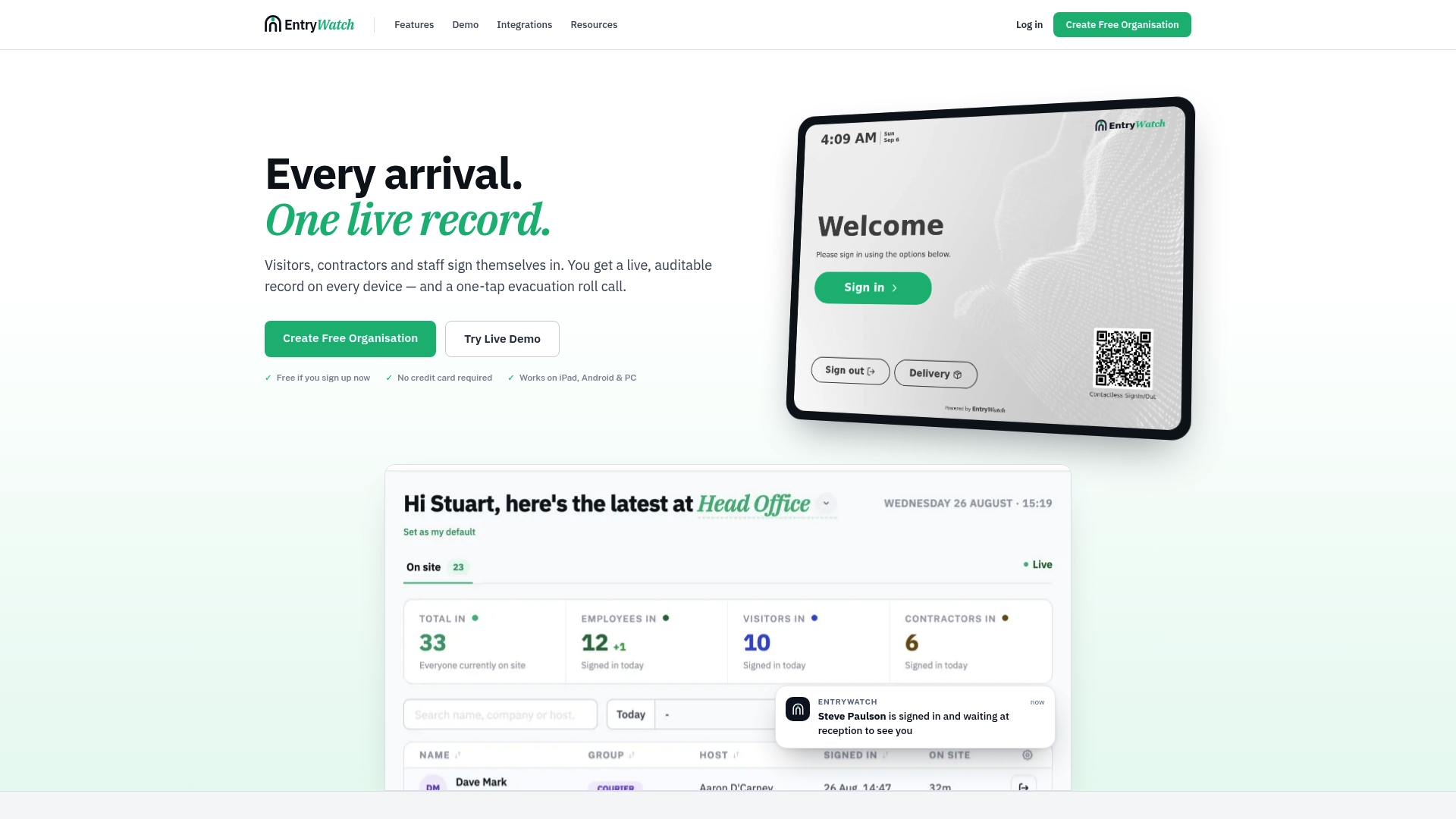
It suits offices, logistics sites, healthcare facilities, and many workplaces juggling visitors, contractors, and staff on the same premises. Because every entry logs to a real-time, exportable record, you get audit-ready compliance without asking reception to keep a paper trail. Start by exploring the EntryWatch visitor management platform and setting up a trial kiosk on the iPad you already have at your front desk.
Sources
For deeper technical detail, see Apple’s billing and compatibility guidance for App Store purchases, GetApp’s roundup of iPad visitor software, and Qminder’s kiosk setup walkthrough.