%20--%3e%3cdefs%3e%3cstyle%3e%20.st0%20{%20fill:%20none;%20stroke:%20%230f172a;%20stroke-linecap:%20round;%20stroke-width:%205.5px;%20}%20.st1%20{%20fill:%20%2310b981;%20}%20%3c/style%3e%3c/defs%3e%3cpath%20class='st0'%20d='M2.75,42.01v-20.12C2.75,11.32,11.32,2.75,21.89,2.75s19.14,8.57,19.14,19.14v20.12'/%3e%3cpath%20class='st0'%20d='M14.12,42.01v-13.62c0-4.29,3.48-7.78,7.78-7.78s7.78,3.48,7.78,7.78v13.62'/%3e%3ccircle%20class='st1'%20cx='21.89'%20cy='11.74'%20r='4.98'/%3e%3c/svg%3e)
Four Ready Layouts for Visitor Badge Design With 2026 SIA Security Guidance

A good visitor badge is readable at a glance, clearly labeled with role and expiry, and built from an editable template sized to match your holder or printer. Start with a file format you can actually edit: PSD or AI for full design control, a print-ready PDF for straightforward printing, or Word, Pages, and Canva for quick, no-design edits.
TL;DR:
- Most badge templates should match your badge holder or sticker size exactly to prevent misprints or crop issues.
- Variable fields such as the visitor’s name, host, type, and expiry should be positioned for quick verification, with static branding kept separate.
- Digital badges require clear visibility of key information and backup systems like sign-in records due to potential screen dimming or battery drain.
- Security features, such as high-contrast text and expiry markers, are essential, especially at high-security sites; avoid role signaling with color alone.
- Using a consistent, editable template with locked branding layers minimizes errors during quick reprints for different visitor roles or events.
Table of Contents
- Visual Examples and Editable Templates to Start From
- What to Put on a Badge and How to Arrange It
- Common Sizes, Avery Templates, and Print-Ready Artwork
- Readability Standards and Security-Minded Design
- Creating Variants: Visitor, Contractor, and VIP Badges
- Where to Find Vetted Templates and Printable Assets
- Digital Visitor Badge Alternatives and Their Design Considerations
- Legal and Privacy Considerations for Visitor Information
- Branding, Usability, and Security Trade-Offs
- A Platform That Prints Badges and Tracks Who Still Has One
- Standards and Templates Worth Bookmarking
- Sources
- FAQ
Visual Examples and Editable Templates to Start From
Four layouts cover most situations. A vertical lanyard badge fits standard clip or reel holders and works well for all-day visitors. A horizontal adhesive sticker suits quick, short-visit check-ins where a lanyard is overkill. A window insert badge slides into a rigid plastic sleeve and holds up through repeated use at reception desks. A sticker badge with a tear-off stub lets you track who picked up which badge and when.
Match the file format to your skill level and output. Designers working in Adobe Illustrator or Photoshop get full control over layers, fonts, and color separations. A print-ready PDF is the safest handoff to a print shop because fonts and images are locked in place. Word or Pages templates let office staff swap names and dates without opening a design tool. Canva and similar browser-based template libraries work well for teams with no design software installed at all.
Before downloading any template, check it against this list:
- The template matches your badge holder or sticker size exactly, not an approximation.
- The file has editable, layered source files rather than a flattened image.
- Fonts are either embedded in the file or listed clearly so you can substitute them.
- Bleed and dieline marks are included if you’re sending the file to a commercial printer.
Skipping that check is how teams end up with badges that print off-center or crop out the expiry date.
What to Put on a Badge and How to Arrange It
A badge only works if someone can verify it in a few seconds. These fields belong on every visitor badge, in order of importance:
- Visitor name: the first thing a security guard or employee checks against an ID or sign-in sheet.
- Host or department: tells staff who to contact if the visitor is unaccompanied or looks lost.
- Visitor type: contractor, guest, vendor, or VIP, so staff know what access level applies.
- Date and time of issue: confirms the badge is current, not left over from a previous visit.
- Expiry or validity window: the detail most often missing, and the one that prevents an old badge from being reused.
Optional fields depend on your risk level. A photo helps at high-security sites but adds printing time and cost that smaller offices rarely need. A company name is useful when you host multiple vendors at once, as seen in vendor parking passes which illustrate badge use for vendors. A badge number supports auditing when you need to match a physical badge back to a sign-in record. A QR code can link to a digital record or trigger a host notification, which is useful if your front desk also runs a visitor-management platform.
Layout-wise, put the visitor’s name and photo (if used) at the top, since that’s where eyes land first. Keep your organization’s branding, logo, and color scheme in a fixed band so it never competes with the variable data. Separate static design elements from the fields that change per visitor, which also makes the template far easier to update later.

Common Sizes, Avery Templates, and Print-Ready Artwork
Most visitor badges fall into two standard sizes, and matching your artwork to the right template avoids a lot of wasted paper.
- 2¼ × 3½ inches corresponds to Avery’s template 5390, a common choice for lanyard and clip-style holders.
- 2⅓ × 3⅜ inches corresponds to Avery’s template 5395, slightly larger and often used for adhesive badges.
- Choose your badge stock or holder first, then build the artwork to that exact template rather than guessing the size.
- Extend background colors and images by 1/16 inch beyond the trim line for bleed, and keep names and text inside the safety margin.
- Design at 300 dpi and embed your fonts before sending the file to a printer.
- Print one test sheet before running a full batch to catch alignment or color issues early.
On the printer itself, set the correct paper or media type for your badge stock, confirm feed alignment, and cut a single badge as a mock-up to check that nothing is clipped before committing paper and time to a full run.
Readability Standards and Security-Minded Design
Legibility is a security feature, not a styling choice. The Security Industry Association’s corporate credential design guide recommends sizing visitor names so they can be read from roughly 8 feet away.
The character heights recommended for visitor names should be sized to be readable from roughly 8 feet away, with contrast levels similar to WCAG AA for normal text. At that size and contrast, a badge stays readable under typical office lighting and from a reasonable verification distance.
A few rules follow from that guidance:
- Never signal a visitor’s role with color alone. Pair every color band with a text label or icon so the badge still works for colorblind staff and in low light.
- Keep names and role labels in a high-contrast font, dark text on a light background or the reverse, rather than light gray on white.
- Mark visitor badges clearly as temporary, and print the expiry date or time somewhere that isn’t easily covered by a lanyard clip.
- Where the risk warrants it, add a simple anti-counterfeit feature such as a watermark pattern or a sequential badge number that ties back to your sign-in log.
Organizational policies often go further than the badge graphic itself, requiring badges to be displayed above the waist, never lent to another person, and reported immediately if lost. That’s a lifecycle rule, not a design choice, but it only works if the badge design makes the expiry and ownership obvious at a glance.
Creating Variants: Visitor, Contractor, and VIP Badges
Build one master template with your branding, logo, and layout locked in place, then keep the variable fields (name, role, expiry) on a separate layer. That separation lets you generate a contractor badge, a VIP badge, and a standard visitor badge from the same base file without redoing the design each time.
- Use a label plus an icon plus a color or pattern together, never color alone, to mark each role.
- Time-limited access, such as a single-day contractor pass, works well as a sticker or overlay rather than a full reprint.
- Keep a simple naming convention for each variant file so reprints during a busy event don’t mix up masters.
Pro Tip: Lock your branding layer before handing a template to front-desk staff, so quick edits in Word or Canva can’t accidentally shift the logo or color bar.
Where to Find Vetted Templates and Printable Assets
Before using any downloaded template in production, confirm it has editable layers rather than a flattened image, matches your exact badge dimensions, includes bleed marks if you’re printing commercially, and carries a commercial license if the badge will be used in a public-facing or paid context.
- Vector icon libraries work better than raster images since they scale cleanly to any badge size.
- A QR code generator tool is useful if you’re linking badges to a digital check-in record.
- Open the file, confirm the dieline matches your holder, and run one test print before a full batch.
Digital Visitor Badge Alternatives and Their Design Considerations
Not every site needs a printed badge. A digital badge displayed on a phone screen or a kiosk confirmation screen works for short visits or sites that already use QR check-in. Design rules still apply: the visitor’s name, role, and expiry need to be visible at the same distance and contrast level as a printed badge, since a digital screen that’s hard to read from a few feet away fails the same way a low-contrast printed badge does.
Digital badges also raise questions a paper badge doesn’t. A phone screen can dim, lock, or run out of battery, so sites that rely on digital-only verification usually pair it with a kiosk-based sign-in record as a backup. QR codes tied to a visitor’s record let a host or security team pull up details instantly rather than reading a name off a card, which matters more at larger sites with multiple entry points.
The tradeoff is mostly about control. A printed badge is visible to everyone in the room without anyone doing anything, while a digital badge usually needs someone to actively check a screen. Sites that handle a high volume of short visits, like logistics docks or shared office buildings, often lean toward kiosk-generated badges that print automatically, combining the visibility of paper with the recordkeeping of a digital system.

Legal and Privacy Considerations for Visitor Information
A visitor badge displays personal information in a public space, which means privacy rules apply even to something as simple as a name tag. Avoid printing more than the badge needs: a full name and visitor type are usually enough, and sensitive details like a visitor’s employer or the purpose of their visit should stay in your sign-in record rather than on a badge anyone in the lobby can read.
Retention matters as much as display. If badges are numbered or linked to a QR code that stores visitor data, you need a clear policy on how long that record is kept and who can access it. Organizational badge policies often require that lost badges be reported and invalidated, which protects both the visitor’s information and the site’s access control.
If your site operates across different regions, check what personal data rules apply locally before adding fields like photos or ID numbers to a badge, since requirements vary by jurisdiction and by industry, such as healthcare or government facilities.
Branding, Usability, and Security Trade-Offs
Heavily branded badges often lose the legibility a security check actually needs. Simple, high-contrast cards with clear role labels tend to outperform decorative designs at the door.
The part teams underestimate isn’t the graphic design at all. It’s the operational discipline: issuing badges consistently, collecting them on departure, deactivating lost ones, and training front-desk staff to actually check expiry dates rather than wave visitors through.
— Flipmind
A Platform That Prints Badges and Tracks Who Still Has One
A template solves the design problem. It doesn’t tell you who’s still wearing a badge from last Tuesday. EntryWatch handles visitor badge printing as part of contactless sign-in, so a badge prints automatically at check-in and the system keeps an auditable record of who received one and when.
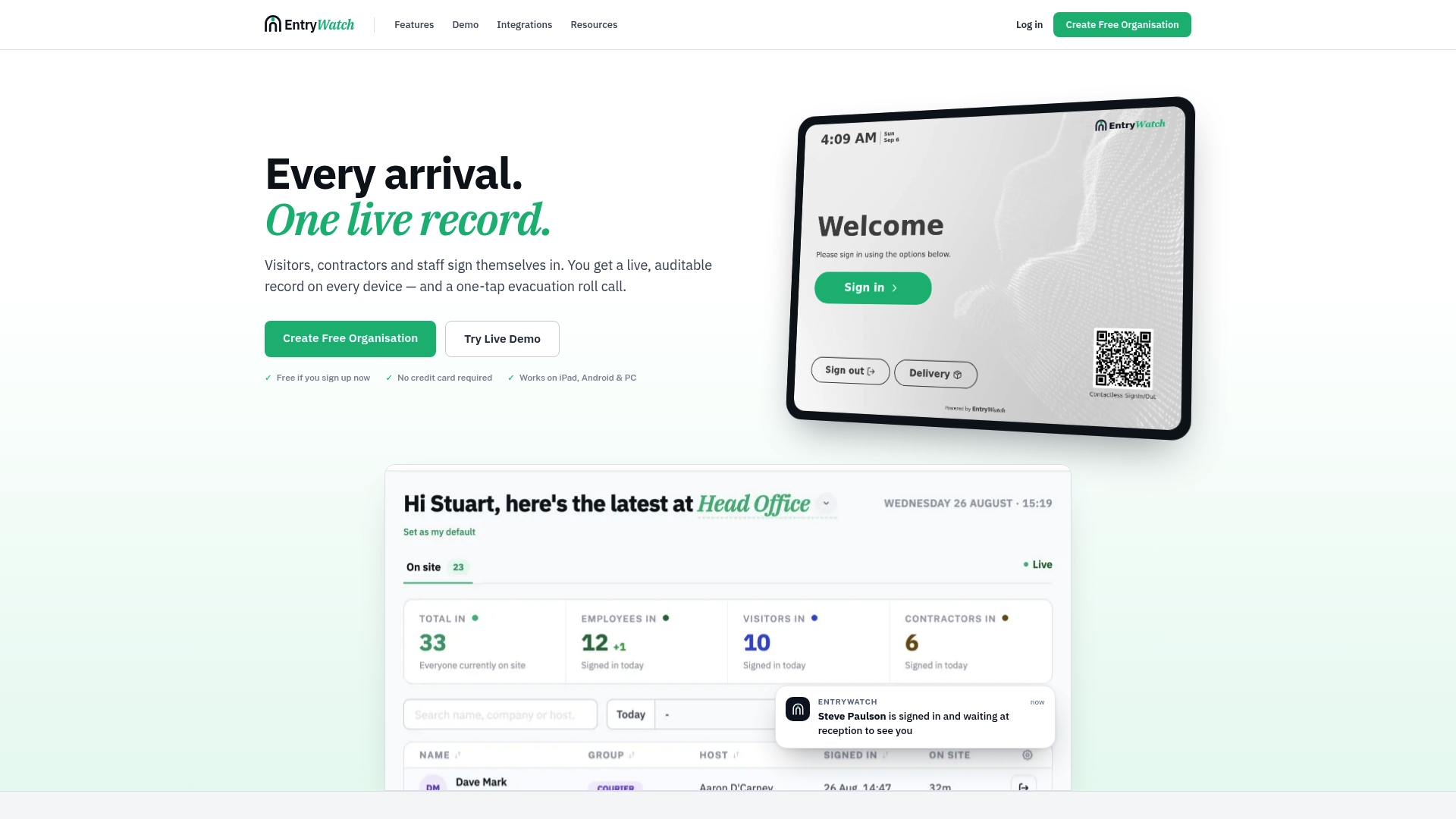
Self-service kiosks can cut the line at reception, and the same record that generates the badge also powers emergency roll calls to help account for everyone on site. If a spreadsheet and a template folder are starting to feel like more work than the badges are worth, see the full visitor management workflow or check kiosk stands and badge printers for on-site setup, and review the Founding plan for current access.
Standards and Templates Worth Bookmarking
- SIA corporate credential design guide: accessibility and security recommendations for badge text and contrast.
- Avery name badge templates and artwork guidelines: practical sizing and print-ready layout rules.
- Oregon State Hospital badge policy: an example of lifecycle rules around display, loss, and return.
Sources
- Security Industry Association releases corporate credential design guide
- Avery artwork and printing guidelines
- Oregon State Hospital identification badges policy
FAQ
What should be on a visitor badge?
A visitor badge should show the visitor’s name, their host or department, their visitor type, and an expiry or validity window. A photo, company name, or badge number can be added depending on how much verification the site needs.
How can I design my own badge?
Start with an editable template in a format you’re comfortable with, such as Word, Canva, or Illustrator, sized to match your badge holder. Keep the branding fixed in one layer and the variable fields like name and date in another, then run a test print before a full batch.
What is the purpose of a visitor badge?
A visitor badge lets staff and security quickly confirm who someone is, who they’re visiting, and whether their access is still valid. It supports both day-to-day accountability and emergency response, since a clear badge makes it easier to account for everyone on site.
What is the standard size of a visitor badge?
Two sizes are most common: 2¼ by 3½ inches, matching Avery’s template 5390, and 2⅓ by 3⅜ inches, matching Avery’s template 5395. The right choice depends on the badge holder or lanyard clip you’re using.