%20--%3e%3cdefs%3e%3cstyle%3e%20.st0%20{%20fill:%20none;%20stroke:%20%230f172a;%20stroke-linecap:%20round;%20stroke-width:%205.5px;%20}%20.st1%20{%20fill:%20%2310b981;%20}%20%3c/style%3e%3c/defs%3e%3cpath%20class='st0'%20d='M2.75,42.01v-20.12C2.75,11.32,11.32,2.75,21.89,2.75s19.14,8.57,19.14,19.14v20.12'/%3e%3cpath%20class='st0'%20d='M14.12,42.01v-13.62c0-4.29,3.48-7.78,7.78-7.78s7.78,3.48,7.78,7.78v13.62'/%3e%3ccircle%20class='st1'%20cx='21.89'%20cy='11.74'%20r='4.98'/%3e%3c/svg%3e)
Cleanable, Audit Ready Check-in Kiosk Hardware for Healthcare & Workplaces

The three hardware choices that matter most for check-in kiosks are a durable, cleanable touch display, integrated identity capture with badge printing, and secure card readers only when payments are actually part of the workflow. These priorities exist because clinical and office lobbies demand frequent disinfection, fast and accurate identity capture, and strict payment security where money changes hands. Get those three right and the rest of the spec, from compute to mounting, falls into place. Our procurement checklist below turns this into concrete next steps.
TL;DR:
- Choose PCAP touch for busy clinical lobbies; specify 350 to 450 nits indoors, brighter screens near daylight, and hardened glass with IP65 and IK08 protection.
- Use fixed mount 2D imagers for busy lobbies, verify EM4100, MIFARE, and HID badge compatibility, and test scanner and printer drivers during a pilot.
- Add payment terminals only for onsite transactions; require PCI PTS certification, SRED encryption, visible card slots, and tamper checks to protect card data.
- Choose integrated hardware for deployments across multiple sites to simplify support; modular builds fit unusual peripherals but leave compatibility and maintenance with internal IT.
- Use at least 8 GB of memory for workflows that rely on cameras and scanners, and verify reach clearances and accessibility with disabled users before scaling.
Table of Contents
- Hardware overview: core components every check-in kiosk needs
- Displays and touch: choosing size, brightness, and touch tech for clinical and lobby environments
- Input and identity capture: barcode and QR scanners, cameras, and card or NFC readers
- Badge and receipt printers: types, label sizes, and integration best practices
- Payments and secure card readers: when to include payments and minimum security requirements
- Enclosure, mounting, and environmental protection: IP, IK, cleanability and materials
- Compute, operating system, and kiosk lockdown: hardware specs, kiosk modes, and remote management
- Connectivity and power: PoE, dual-network, Wi-Fi, and cellular failover
- Accessibility and compliance: kiosk accessibility standards and practical checks
- Procurement and deployment checklist: questions to ask vendors and a pilot-to-scale timeline
- EntryWatch in practice: how our kiosk hardware and integration support secure, auditable check-in
- Field lessons from deployments in healthcare and logistics
- Why EntryWatch is a practical option for check-in kiosk deployments
- FAQ
- Sources
Hardware overview: core components every check-in kiosk needs
Before comparing vendors or models, it helps to agree on what a check-in kiosk actually contains. Every deployment, whether in a hospital lobby or a logistics yard, draws from the same basic parts list:
- Display and touch controller: the screen and sensing layer that handles input, usually PCAP or IR touch.
- Compute unit: the processor, memory, and storage running the kiosk operating system and software.
- Barcode or QR scanner: reads appointment confirmations, badges, or tickets.
- NFC/RFID reader: taps staff cards, visitor badges, or access credentials.
- Camera: captures a photo for badges or verifies identity against an ID document.
- Microphone and speaker: support voice prompts or accessibility features.
- Badge or receipt printer: produces a physical credential or confirmation.
- Payment terminal: processes cards when the workflow requires onsite payment.
- Enclosure, stand, and PoE module: physically houses and powers the unit.
Buyers generally choose between two deployment paths. Pre-integrated kiosks arrive with these components matched, tested, and supported by one vendor, which cuts integration risk and shortens install time, though it can limit flexibility if you need a nonstandard peripheral later. Modular builds let you pick each component independently, which suits unusual requirements but shifts driver compatibility and support burden onto your own IT team.
For multi-site rollouts, integrated peripherals usually win. When ten or fifty locations need identical behavior, reducing the number of driver versions, firmware revisions, and support tickets in play matters more than squeezing out marginal savings on individual parts. A single vendor relationship for the whole stack also simplifies warranty claims and spare-parts logistics, both of which become real operational costs once a kiosk fleet is running across multiple buildings.
Displays and touch: choosing size, brightness, and touch tech for clinical and lobby environments
Touch technology is the first decision, and it has real operational consequences. Projected capacitive (PCAP) touch is generally the better choice for healthcare and high-traffic lobby kiosks because it supports accurate multi-touch, works reliably with latex and nitrile gloves, and resists the false triggers that infrared (IR) sensors can suffer when dust or disinfectant residue builds up on the bezel, according to ViewSonic’s healthcare kiosk display guide. IR systems can still work in lower-traffic, non-clinical settings, but they need more frequent bezel cleaning to stay accurate.
Brightness should match the location, not a generic spec sheet number. Interior kiosks away from windows typically perform well at 350 to 450 nits, while units near glass doors or skylights need higher brightness to stay readable against direct daylight. Overspecifying brightness for a dim corridor wastes money; underspecifying it for a sunlit entrance produces a kiosk nobody can read.
Materials matter as much as electronics. The same ViewSonic guidance points to hardened glass rated 7H as a baseline for scratch resistance, an IP65-rated front panel to tolerate regular disinfectant wipe-downs, and IK08 or higher impact protection for lobbies where carts, luggage, or wheelchairs regularly pass close to the unit. Cleanability is no longer a secondary concern in these environments: kiosk industry accessibility and cleanability guidance treats disinfectant resistance as a core selection criterion alongside computing power, not an afterthought.
Screen size and orientation should follow the use case rather than a default “bigger is better” instinct:
| Use case | Typical screen size | Orientation |
|---|---|---|
| Handheld or counter tablet check-in | 10 inches | Portrait or landscape |
| Standalone counter or badge kiosk | 21 to 27 inches | Portrait |
| Lobby directory or wayfinding signage | 21 to 27 inch class | Landscape |
A 10-inch tablet works well for a reception desk assist station, but a standalone lobby kiosk handling badge printing and ID capture usually needs the larger 21 to 27 inch class to fit a camera, scanner, and printer slot comfortably around the screen.
Input and identity capture: barcode and QR scanners, cameras, and card or NFC readers
Identity capture hardware is where check-in kiosks succeed or fail at actually speeding up a lobby. The right scanner and reader choices depend on who is checking in and what credential they are carrying.
- Use 2D imagers over laser scanners. A 2D imager reads QR codes, PDF417 barcodes, and standard 1D barcodes, covering appointment confirmations, visitor badges, and driver’s license barcodes without swapping hardware.
- Mount scanners fixed and hands-free where volume is high. A fixed-mount imager lets visitors present a phone screen or printed badge without picking up a handheld unit, which speeds up queues in busy clinics and office lobbies.
- Keep a handheld scanner as backup. Front desk staff can use it for exceptions, damaged barcodes, or visitors who need extra help.
- Specify broad NFC/RFID compatibility. Enterprise deployments often mix credential formats, so ask vendors to confirm support for EM4100, MIFARE, and HID formats rather than assuming one reader covers every badge type already in circulation.
- Treat passport and driver’s license capture carefully. PDF417 barcode and OCR capture of government ID is appropriate for regulated check-ins such as hospital registration or contractor induction, but it raises privacy and retention questions that should go through legal review before deployment, not after.
- Match camera specs to the lighting, not just the resolution number. A camera with IR illumination performs better in dim lobbies, and any photo capture feature needs clear privacy masking and a defined retention period so staff and visitors both know how long an image is kept.
The OTCnet kiosk tablet system requirements guide illustrates how specific this gets in practice: it names compatible scanners and card readers and requires installing matching scanner drivers and firmware before check capture works at all, a useful reminder that identity and card hardware compatibility needs to be verified model by model, not assumed from a spec sheet category.
Badge and receipt printers: types, label sizes, and integration best practices
Printer choice causes more field problems than almost any other kiosk component, mostly because driver compatibility gets treated as an afterthought until a rollout stalls.
- Choose direct-thermal desktop printers with mainstream driver support. The Brother QL series is a common choice precisely because its drivers are broadly supported across Windows and common kiosk platforms, which avoids custom driver work at each site.
- Standardize on a 62mm badge width where possible. A consistent label size across sites simplifies consumables stocking and lets facilities teams order supplies centrally instead of tracking different stock per location.
- Design badges for both security and contact tracing. A visitor badge should carry a QR code tied to the visit record, the host’s name, and a visible expiry time or date, with a photo added only where the site’s security policy requires it.
- Plan consumables and cleaning as a recurring task, not a one-time purchase. Label stock, ribbon, and printer cleaning kits need a reorder schedule, and skipping this is one of the most common reasons a kiosk fleet degrades within months of launch.
Pre-integrated visitor management kiosks that ship with a barcode scanner, NFC reader, and label printer already matched and tested cut down on exactly this kind of integration risk, which is part of why many procurement teams prefer them for multi-site rollouts over assembling individual peripherals themselves, per this visitor management kiosk example.
Payments and secure card readers: when to include payments and minimum security requirements
Payments should be added to a check-in kiosk only when the workflow genuinely requires an onsite transaction, such as a parking fee, a co-pay, or an event ticket purchase. Adding a payment terminal when it is not needed brings PCI compliance overhead, physical security requirements, and certification costs that most visitor and employee check-in use cases simply do not need.
Where payments are required, the security bar is non-negotiable:
- Require PCI PTS certification for any unattended terminal. This is the baseline certification for card-reading hardware operating without a cashier present.
- Insist on SRED architecture. Secure Reading and Exchange of Data encrypts card information immediately on read, before it ever reaches the kiosks compute unit, according to MagTek’s secure card reader guidance.
- Specify physical mounting that keeps the card slot unobstructed and visible. An unobstructed view deters skimming devices and is often a condition of maintaining PCI certification, not just a safety nicety.
- Request tamper-evident mounting and schedule regular physical inspection. A terminal that has been pried open or modified should be visually detectable during routine checks.
PCI PTS certification and SRED architecture are the two baseline requirements that unattended payment terminals must meet to keep card data encrypted from the moment it is read. Any vendor quoting a payment-enabled kiosk should be able to produce certification documents for both without hesitation.
Functionally, ask for EMV contact and chip support, contactless and NFC payment, magnetic stripe reading where local card stock still requires it, and device-level encryption built into the reader itself rather than handled later in software.
Enclosure, mounting, and environmental protection: IP, IK, cleanability and materials
The enclosure is what determines whether a kiosk survives three years of public use or needs replacing within one. A handful of specs do most of the work.
- Specify IP65-rated front panels for any site with frequent disinfecting. Healthcare lobbies, in particular, need a sealed front surface that tolerates repeated wipe-downs without degrading touch sensitivity.
- Require IK08 or higher impact resistance in public lobbies. This rating covers resistance to accidental knocks from carts, luggage, and foot traffic, not just deliberate abuse.
- Choose materials that tolerate disinfectants over time. Tempered or hardened glass and powder-coated steel resist the chemical breakdown that cheaper plastics and unsealed metals suffer under repeated cleaning.
- Use vandal-resistant fasteners and hidden cable routing. Exposed screws and visible cabling invite tampering and also look unfinished in a lobby setting.
- Build in service access for warranty repairs. A locked rear panel that technicians can open without disassembling the whole unit saves significant time on every service call.
- Consider semi-outdoor and curbside placements separately. A kiosk sited near an entrance vestibule or covered curbside pickup area needs an expanded operating temperature range and, in some cases, a NEMA-rated enclosure built for that exposure.
None of this is optional detail. A kiosk that looks identical to a competitor’s on a spec sheet can fail within a year if its front panel isn’t actually sealed against the disinfectant regimen a hospital or office runs daily.
Compute, operating system, and kiosk lockdown: hardware specs, kiosk modes, and remote management
The compute layer rarely gets the same scrutiny as the screen or scanner, but underspecifying it causes slow, unreliable kiosks that frustrate staff and visitors alike.
- Set 4 GB RAM as an absolute minimum for light browser-based kiosks. Simple web-app check-in flows can run on this, though some minimum device guidance lists figures as low as 3 GB for the lightest builds, per Dutchie’s kiosk system requirements.
- Move to 8 GB or more for camera- and scanner-heavy workflows. ID capture, photo badges, and live video all add memory overhead that a bare-minimum spec will choke on during peak hours.
- Choose SSD storage over spinning disks. Reliability and boot time both improve, which matters on a device that restarts itself automatically after every lockdown reset.
- Pick the operating system based on peripheral needs, not habit. Windows IoT offers the broadest driver support for scanners, printers, and card readers, making it the safer choice for feature-heavy deployments. Android or iPad-based kiosks suit simpler tablet check-in flows where touch simplicity matters more than peripheral breadth. ChromeOS fits lightweight, web-only check-in apps with minimal local hardware.
- Lock the device down with the platform’s own management tools. Windows deployments typically use Intune, provisioning packages (PPKG), or PowerShell scripts to enforce kiosk mode; Android deployments use Lock Task mode paired with an MDM profile.
- Stage firmware and driver updates before a mass rollout. Testing an update against a handful of pilot units first catches compatibility problems before they reach every site at once.
Pro Tip: Build your staged-rollout test plan around the slowest peripheral in your stack, usually the printer or scanner driver, since that is where firmware updates most often break something.
Connectivity and power: PoE, dual-network, Wi-Fi, and cellular failover
Network and power design decides how expensive your kiosk fleet is to maintain after installation day. Getting it right up front avoids repeat site visits.
- Ask for PoE-capable hardware wherever possible. Power over Ethernet lets an installer run a single cable for both data and power, cutting installation labor and avoiding a separate electrical run; some vendors offer PoE as an optional add-on module rather than a built-in feature, so confirm this during specification.
- Design dual-network separation into the deployment. Keep production traffic (check-in data, badge printing) on one network path and telemetry or remote management traffic on another, and document the NIC and port requirements for each.
- Size cellular failover for genuine outage risk, not as a default add-on. A cellular modem backup makes sense at sites with unreliable wired internet or where downtime has serious operational cost, such as emergency department check-in.
- Add UPS and surge protection at every site, not just high-value ones. A brief power blip that reboots an unprotected kiosk mid-checkin creates a worse experience than a short planned outage.
- Build in remote health telemetry from day one. Knowing a kiosk has gone offline before a visitor reports it saves a support call and a frustrated lobby.
Accessibility and compliance: kiosk accessibility standards and practical checks
Accessibility is a hardware decision as much as a software one, and it needs to be verified on-site, not assumed from a brochure.
- Treat ISO/IEC 20071-31 as the baseline reference. It sets requirements covering kiosk hardware, software, and installation environment together, which means a fully accessible touchscreen mounted at the wrong height still fails the standard.
- Verify ADA reach and approach clearances during the site survey, not after installation. Mounting height and the floor space in front of the kiosk both need checking against local accessibility codes before a unit ships to site.
- Request physical accessibility aids where the deployment calls for them. Tactile keypads, headphone jacks for audio prompts, and adjustable-height stands all address needs that a touchscreen alone cannot.
- Remember that WCAG governs the software layer, not the hardware. Screen reader support and color contrast on the interface complement, but never replace, the physical accessibility checks above.
- Pilot test with users who have disabilities before full rollout. Documenting what fails and how it gets remediated during a pilot is far cheaper than retrofitting fifty installed units later.
Procurement and deployment checklist: questions to ask vendors and a pilot-to-scale timeline
A structured pilot catches the problems a spec sheet cannot. Before signing a multi-site contract, work through this sequence:
- Request certification documents up front. Ask for PCI PTS and SRED documentation for any payment terminal, and IP/IK test reports for the enclosure.
- Confirm driver and OS compatibility in writing. Get a list of supported operating systems and confirm driver availability for your specific scanner, printer, and card reader models.
- Ask about warranty terms and spare-part SLA. Know how fast a failed unit gets a replacement part before you need one.
- Clarify remote management capability. Confirm whether the vendor’s kiosk supports MDM, Intune, or an equivalent remote lockdown and update tool.
- Check consumables and label supply chains. Ask who supplies label stock and badge ribbon, and whether it is standardized across your planned sites.
- Vet the installation partner separately from the software vendor. Facility teams should apply the same supplier-vetting discipline to kiosk installation as they would to any other site hardware, and this facility manager’s supplier checklist offers a useful framework even though it was written for access control hardware.
| Spec category | What to request in the RFP |
|---|---|
| Display and touch | PCAP touch, brightness rating, glass hardness |
| Scanner | 2D imager, fixed-mount option |
| Printer | Driver platform, label width |
| Payment reader | PCI PTS certificate, SRED confirmation |
| Operating system | Supported OS, MDM/lockdown tool |
| Connectivity | PoE support, dual-NIC availability |
| Mounting | IP rating, IK rating, ADA reach clearance |
A typical pilot runs through site survey, hardware staging, firmware testing, and a short live trial before scaling to additional locations, with the biggest cost drivers usually being custom enclosures, payment terminal certification, and installation labor rather than the base kiosk hardware itself. Stage firmware and driver compatibility testing on pilot units before committing to a mass rollout order.
EntryWatch in practice: how our kiosk hardware and integration support secure, auditable check-in
We supply kiosk stands and badge printers alongside our visitor management software, so the hardware and the check-in workflow come matched rather than assembled separately on-site. That pairing shortens the gap between signing a contract and running a live lobby.
Our platform runs self-service kiosk check-in for visitors, contractors, and staff, with every entry logged into a real-time, auditable record. When an evacuation happens, that same record becomes the basis for an automatic emergency roll call, so wardens know who is on site without relying on a paper sign-in sheet. Badge printing, host notifications, and digital forms such as NDAs and health declarations run through the same check-in, keeping compliance documentation attached to each visit.

Field lessons from deployments in healthcare and logistics
Three patterns show up again and again once kiosks move from pilot to full rollout. First, specs that work in a quiet back office rarely survive a busy clinical corridor, so match display and enclosure ratings to the actual location, not a generic standard. Second, driver compatibility problems surface during the pilot, not the demo, so test scanner and printer drivers against your chosen OS before ordering fleet-wide. Third, consumables and cleaning get forgotten until a printer runs out of labels mid-shift. We have seen teams over-specify every site identically to avoid decisions, only to pay for IP65 enclosures in back offices that never needed them, while skipping a proper pilot at the one busy entrance that did.
— Flipmind
Why EntryWatch is a practical option for check-in kiosk deployments
We offer kiosk stands and badge printers built to pair directly with our visitor management software, so you are not left matching mismatched hardware and software vendors after the fact.
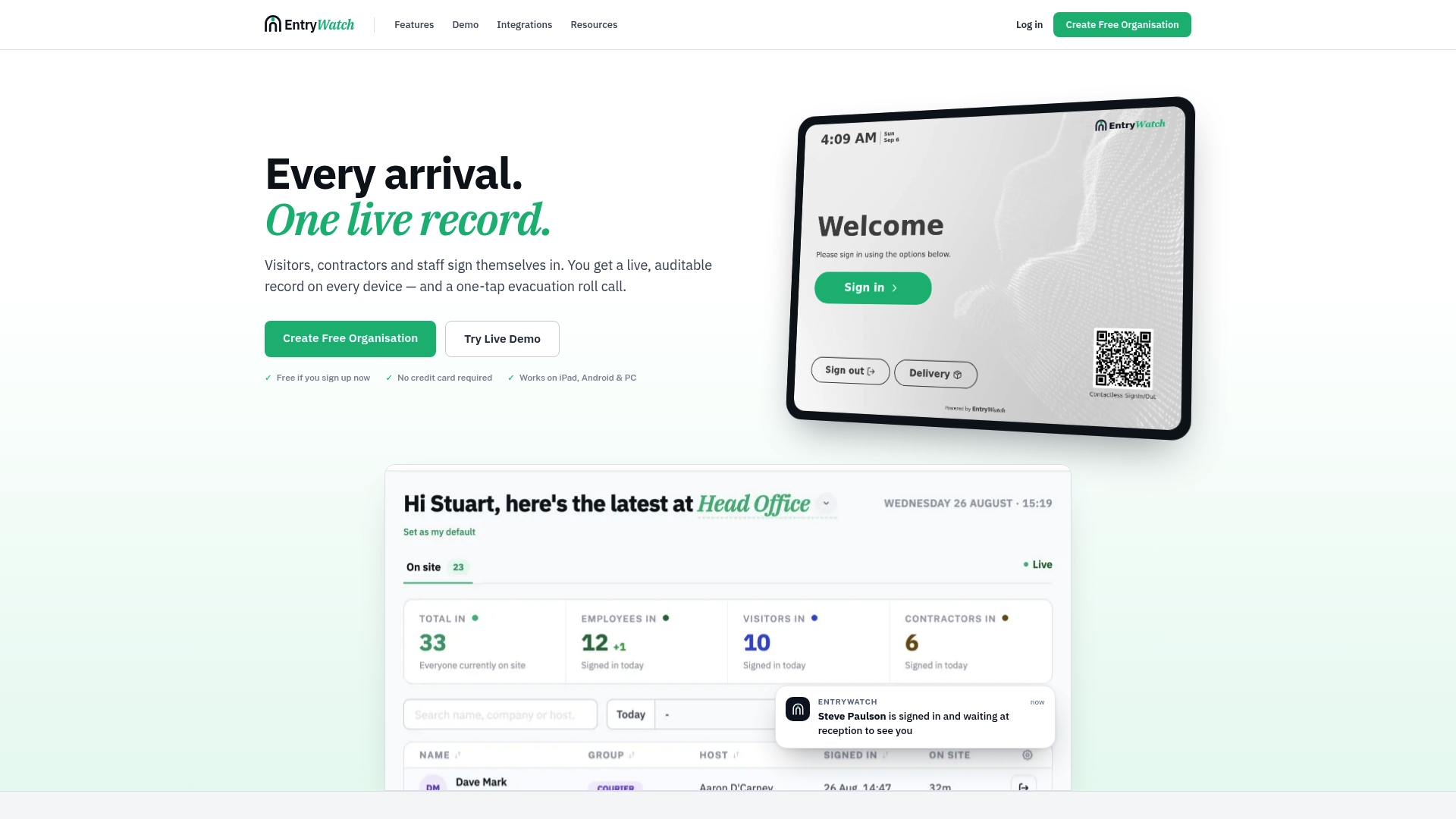
Our self-service kiosk check-in eliminates reception queues while keeping every entry logged for emergency roll call and compliance review. For organizations running early rollouts, a Founding plan currently includes the full platform at no cost until 2027, which makes testing the hardware-software pairing on one site a low-risk first step. Visit our pricing page to check current access, or get in touch to request a hardware spec sheet before your next site survey.
FAQ
How much does a check-in kiosk cost?
Costs vary widely depending on display size, payment hardware, and enclosure rating, so there is no single published figure that applies across vendors and deployment types. For our own hardware line, including kiosk stands and badge printers, current details are available on our pricing page.
What does “check in at kiosk” mean?
Checking in at a kiosk means a visitor, patient, or employee completes their own sign-in on a self-service screen instead of speaking to a receptionist. The kiosk typically scans a confirmation, captures identity information, and may print a badge, all without staff involvement at that step.
What are the 7 types of kiosks?
Definitions vary across the industry, but common categories include information kiosks, self-service check-in kiosks, ticketing kiosks, payment or bill-pay kiosks, wayfinding kiosks, employment or HR kiosks, and vending or retail kiosks. Check-in kiosks for healthcare and visitor management sit within the self-service category, usually combining identity capture, badge printing, and sometimes payment.
How does a check-in kiosk work?
A visitor or employee approaches the kiosk and scans a confirmation code, badge, or ID using the device’s barcode or NFC reader. The kiosk then verifies the entry, may capture a photo, and prints a badge or receipt, while the software layer logs the visit into a real-time record for the host and, in an emergency, for roll call purposes.
Sources
- How to Choose a Display for Self Check-In Kiosks in Healthcare - ViewSonic Library
- MagTek secure card reader and SRED guidance (datasheet/whitepaper)
- OTC Kiosk Tablet system requirements — Fiscal Treasury (OTCnet)