%20--%3e%3cdefs%3e%3cstyle%3e%20.st0%20{%20fill:%20none;%20stroke:%20%230f172a;%20stroke-linecap:%20round;%20stroke-width:%205.5px;%20}%20.st1%20{%20fill:%20%2310b981;%20}%20%3c/style%3e%3c/defs%3e%3cpath%20class='st0'%20d='M2.75,42.01v-20.12C2.75,11.32,11.32,2.75,21.89,2.75s19.14,8.57,19.14,19.14v20.12'/%3e%3cpath%20class='st0'%20d='M14.12,42.01v-13.62c0-4.29,3.48-7.78,7.78-7.78s7.78,3.48,7.78,7.78v13.62'/%3e%3ccircle%20class='st1'%20cx='21.89'%20cy='11.74'%20r='4.98'/%3e%3c/svg%3e)
EntryWatch: One Session Teams Notifications Setup for IT & Facilities

Use a Teams Workflows incoming webhook: create the workflow, copy its webhook URL, and configure EntryWatch to post event specific JSON or Adaptive Cards to that URL. This gets visitor arrivals, host alerts, sign-outs, and emergency roll calls into the right channel without extra software. Map each event to its own template, test the webhook before go-live, and store the URL as a protected secret.
TL;DR:
- Using a Teams incoming webhook requires careful permission checks and setup in the target channel, with a clear naming plan for ease of administration.
- Webhook URLs should be stored securely in EntryWatch, as anyone with access can post to the channel, and rotating the URL regularly is recommended for security.
- Test the webhook with manual POSTs before connecting EntryWatch, including simulated events and failure scenarios, to ensure reliable message rendering and filtering.
- Map each EntryWatch event to its own dedicated template, separating safety alerts from routine arrivals to prevent alert fatigue and missed notifications.
- A webhook setup through Teams Workflows does not need a premium license but may be restricted by tenant policies; confirm approvals and restrictions beforehand.
Table of Contents
- Quick checklist before you start
- Create the Teams incoming webhook (Workflows) step by step
- Map EntryWatch events to Teams messages and design Adaptive Cards
- Security, permissions, and governance considerations
- Test, staged rollout, and troubleshooting checklist
- EntryWatch configuration notes and recommended defaults
- What experienced admins get wrong about this rollout
- Getting Teams notifications running without the guesswork
- Sources
- FAQ
Quick checklist before you start
Before touching tenant settings, gather a few things so the setup runs in one sitting.
- Pick the target Team, channel, or chat, and confirm you have permission to open Workflows there.
- Confirm you have an EntryWatch admin account and know where to paste the webhook URL once it’s generated.
- Check whether your organization restricts Power Platform or Workflows features, and get sign-off from your Teams admin if it does.
- Decide your channel strategy now: safety alerts and routine reception notices usually belong in separate channels, and simpler cards are easier to read on mobile.
Sorting these out first avoids the most common delay: getting halfway through the workflow and realizing you can’t post to the channel you picked, or that your tenant blocks the feature entirely.
Create the Teams incoming webhook (Workflows) step by step
Microsoft’s current method for incoming webhooks runs through the Workflows app inside Teams, replacing the older connector setup. Here’s the sequence:
- Open the target channel, select the “More options” menu (the three dots), and choose Workflows.
- Search for a template such as “Send webhook alerts to a channel,” or build a custom workflow that starts with “When a Teams webhook request is received.”
- Set the Team and Channel (or Chat) the workflow should post into, then name the workflow clearly, for example “EntryWatch Visitor Alerts.”
- Save the workflow and copy the generated HTTPS webhook URL from the details page. This URL is what EntryWatch will send event data to.
- Decide whether your workflow will accept a Message Card or an Adaptive Card payload, and check which schema your chosen template supports before building EntryWatch’s message templates around it.
Microsoft documents this flow in detail, including how the webhook URL is generated and copied from the workflow’s details page. Setting up a webhook this way does not require a premium Teams or Power Platform license, though your organization’s own tenant policies may still restrict template use.
Pro Tip: Name your workflow after the event type it carries (for example, “EntryWatch Emergency Alerts”) so admins can find and audit it months later without guessing.
Map EntryWatch events to Teams messages and design Adaptive Cards
Once the webhook exists, the real design work is deciding what each EntryWatch event should say when it lands in Teams. Treat each event type as its own template rather than reusing one generic message for everything.
- Visitor arrival: name, host, time, and site or kiosk ID.
- Host notification: who arrived, for whom, and a callback number or email link if EntryWatch has one on file.
- Sign-out: name, time out, and duration on site if useful for your workflow.
- Emergency roll call: a short, unmistakable message that stands apart visually from routine traffic.
Every template should carry the timestamp, visitor name, host name (or “unknown” when no host is mapped), and the kiosk or site identifier. Adaptive Cards let you add buttons and richer formatting than a plain Message Card, but Microsoft recommends confirming your workflow’s supported schema first rather than assuming both card types render the same way.
Keep cards small. A card crowded with fields is harder to scan on a phone, and reception staff often glance at these notifications between other tasks. The single most important design decision is separating safety alerts from routine ones: an emergency roll call buried in a channel full of “visitor signed in” messages is easy to miss, which defeats the purpose of sending it at all.
Security, permissions, and governance considerations
A webhook URL functions as a credential. Anyone who has it can post to your channel, so store it inside EntryWatch’s secure settings and limit who in your organization can view or edit it.
For most visitor alert use cases, an incoming webhook is the simpler and lower-privilege choice compared to building against Microsoft Graph. Graph’s channel messaging permissions are built around delegated scopes like ChannelMessage.Send, and application-level access is documented mainly for migration scenarios, so a webhook workflow often avoids the broader admin consent that Graph-based posting requires.

Still, confirm with your Teams admin that Workflows and Power Platform features are permitted in your tenant, and document that approval alongside the webhook itself. Set a rotation schedule for the URL and write down the process for revoking and regenerating it if you ever suspect it has leaked.
Test, staged rollout, and troubleshooting checklist
Don’t connect EntryWatch to a live channel on the first attempt. Run through this sequence instead:
- Create the webhook and send a manual test POST using Postman or cURL to confirm the card renders correctly in Teams.
- Configure EntryWatch with the webhook URL and trigger a simulated visitor arrival.
- Test a failed host mapping (an “unknown host” scenario) to see how the card degrades.
- Test a sign-out event and an emergency roll call, confirming the roll call is visually distinct and lands in the right channel.
- Watch the workflow’s run history in Teams for failures before expanding to more channels or sites.
Microsoft’s own testing guidance recommends this exact pattern: send a test POST, inspect the resulting card, then expand gradually rather than switching every channel over at once. If a high-volume site starts flooding a single channel, split it into separate webhooks per site rather than tolerating a wall of notifications nobody reads.
Pro Tip: If a message fails to post, check the response code first: most delivery failures trace back to a malformed JSON payload rather than a Teams outage.
EntryWatch configuration notes and recommended defaults
Inside EntryWatch, Host Notifications map cleanly to a host-arrival card, and emergency roll calls deserve their own dedicated safety channel rather than sharing space with reception traffic.
- Map Host Notifications to a host-arrival template that includes the visitor’s name and the host being alerted.
- Route emergency roll call alerts to a high-priority channel with a short, clear Adaptive Card that’s easy to spot at a glance.
- For multi-site deployments, include the kiosk ID and site name in every card, and consider a separate webhook per site once volume grows.
- Keep routine arrivals in the reception or host team’s own channel, away from safety alerts.
EntryWatch’s feature and pricing pages walk through where these settings live on the product side, alongside kiosk and badge printer options for teams still finalizing their hardware setup.
What experienced admins get wrong about this rollout

Most teams try to connect every event to Teams on day one. Start with one pilot channel and a short testing window instead, then expand once the templates prove reliable.
The bigger mistake is mixing safety and routine alerts in one channel. It causes alert fatigue, and the messages that matter most get lost in the ones that don’t. Document your webhook locations, rotation policy, and a simple runbook for outages before you call the rollout finished.
— Flipmind
Getting Teams notifications running without the guesswork
EntryWatch handles the event side of this integration out of the box: Host Notifications, emergency roll calls, and webhook-based Teams delivery are already part of the platform, so the setup described above is something you configure once inside EntryWatch rather than something you build from scratch.
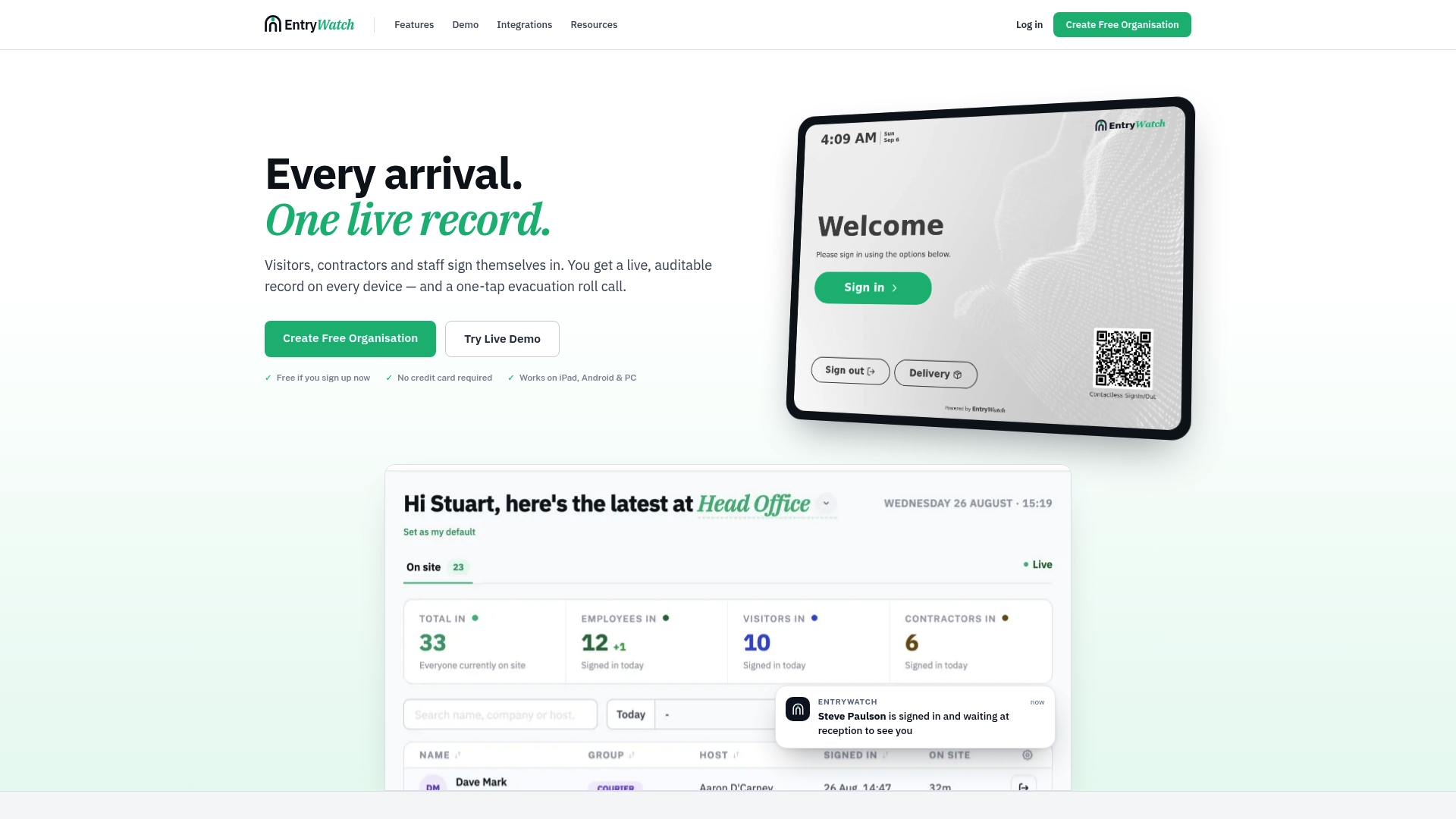
If you’re weighing a visitor management system that pairs with kiosk hardware and badge printing on top of the Teams integration, EntryWatch’s Founding plan is worth a look, along with the full feature set for teams planning a multi-site rollout.
Sources
This guide draws on Microsoft’s own webhook and Workflows documentation, plus EntryWatch’s product pages.
- Create an Incoming Webhook - Teams | Microsoft Learn
- Send messages in Teams using incoming webhooks | Microsoft Support
FAQ
Does setting up a Teams webhook require a premium license?
No. Creating an incoming webhook through Teams Workflows does not require a premium license, though your organization’s own tenant policies may still restrict Power Platform features. Check with your Teams admin before rollout if you’re unsure.
Should I use Message Cards or Adaptive Cards for EntryWatch alerts?
Adaptive Cards support richer formatting and actions, but you should confirm which schema your specific workflow supports before building templates around it. Message Cards remain a simpler, reliable fallback for basic text and field layouts.
Is a webhook safer than using Microsoft Graph for notifications?
For routine alert posting, an incoming webhook typically needs less administrative consent than Graph based messaging, since Graph’s channel posting relies on delegated permissions intended mainly for migration scenarios. Webhooks still function as credentials, so store the URL securely regardless of which method you choose.
How do I stop emergency alerts from getting lost in routine traffic?
Route emergency roll call alerts to a separate, dedicated channel rather than the one used for everyday visitor sign-ins. EntryWatch’s Host Notifications and emergency roll call features are built to support this kind of channel separation directly.
What’s the safest way to test a new webhook before going live?
Send a manual test POST with a tool like Postman, confirm the card renders correctly, then run through EntryWatch’s core event types, including a failed host mapping and an emergency alert, before connecting a live channel. This staged approach mirrors Microsoft’s own testing recommendation of validating a payload before expanding to production use.